Tool Governance
Last updated:
Tool governance decides which callable capabilities an agent can receive and which checks must pass before a call runs. Selection, network classification, approval, and limits are separate controls.
Inspect the Tools catalogue
Open Settings > Tools to review the tools Oscova currently knows about. This catalogue is for inspection and per-user policy. It does not select tools for an agent.
The catalogue combines built-in, plugin, and connected MCP tools. Search by visible name, server, or qualified name, and use the server filter to narrow the source.
The table shows:
- Tool: visible name and description.
- Qualified Name: the exact identifier saved in agent and policy settings.
- Server: the tool's source.
- Internet: the effective network classification.
- Policy: default or custom governance, including quota usage.
The Blocked badge means the current global offline setting prevents that Internet-classified tool from being used. Agent-specific local-only blocks also apply during that agent's runs.
Use Main Agent, Agents, or a custom task run scope to select tools. A catalogue entry alone does not grant access.
Control selection and discovery
Tool selection establishes the maximum set available to an agent. If a tool is not selected, the agent cannot call it.
Confidential Chat can narrow that set further. A confidential agent can read existing persistent memory, but it does not receive the action that saves new memory notes. Selecting, pinning, discovering, or auto-approving that action cannot restore it during a confidential run.
Tool discovery controls when selected tools enter the model's context:
- With discovery off, all permitted selected tools are visible at run start.
- With discovery on, pinned tools are visible at run start.
- Other selected tools become visible after the agent finds them through tool search.
Tool search matches qualified names, descriptions, and argument names, returning up to five matches. It excludes tools blocked by local-only policy, denial, or delegated-run approval rules.
An agent exposed as a tool can be selected by another agent. The called agent keeps its own file grants and local-only policy. Approval-required tools are omitted from that delegated run because it has no approval channel.
Classify network behavior
Each tool has an effective network scope:
- Local only means no network access is expected.
- Can reach network means the tool's main job is local but it may use the network.
- Internet means outbound network access is central to the tool.
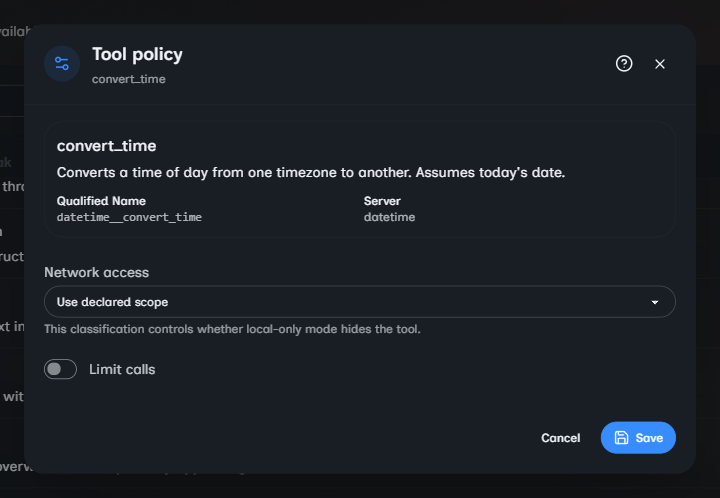
Open Tool policy from a row to keep Use declared scope or override the scope. Saving changes later runs and refreshes cached agent definitions.
Global Offline mode or agent-level Local only blocks Internet tools before the model receives them. It also blocks public host-managed HTTP calls and cloud providers. Local and LAN endpoints remain available.
Network scope is classification metadata, not an operating-system firewall. Classify a network-capable STDIO MCP tool as Internet when outbound access is part of its purpose. A host-run STDIO process has host permissions. A Docker-run server has the mounts and network available to that container.
Important
Can reach network tools are not removed solely by local-only tool filtering. Use Internet for tools whose purpose is external access.
An override never selects a tool or bypasses an agent denial. Use the least permissive accurate classification.
Set approval behavior
Each selected tool has an agent or task-scope approval mode:
- Default uses the tool's declared default.
- Require approval asks before an interactive call proceeds.
- Auto-approve exposes the call without a prompt.
- Deny removes the tool for that scope.
The effective order is:
- The tool must exist and be selected.
- The agent's runtime mode must allow it, including Confidential Chat restrictions.
- Offline or local-only network policy must allow it.
- The agent or task policy may require approval, auto-approve, or deny it.
- Discovery decides when a permitted tool becomes visible.
- The run handles any required approval.
- Quotas, hooks, path containment, and tool validation still apply.
Auto-approve affects only approval-required calls. It cannot restore an unselected, confidentially restricted, denied, or offline-blocked tool and cannot bypass later execution checks.
Host execution is the default for shell commands. Auto-approved host shell commands run without a human prompt and can change the machine running Oscova with its operating-system account permissions. Workspace file grants do not contain arbitrary host shell code.
Interactive web, Discord, and Telegram runs can route approval requests to their active channel. Background tasks cannot wait for a person, so a task must choose:
- Auto-reject approval-required tools, the safer default.
- Auto-approve approval-required tools, for a reviewed unattended workflow.
Limit calls for a user
In Tool policy, enable Limit calls and enter a maximum from 1 to 1,000,000. The limit applies to that qualified tool for the signed-in user across agent run surfaces.
The fixed 24-hour window starts with the first counted call. The catalogue shows current usage as used / maximum.
When the budget is exhausted, Oscova stops the run before invoking the tool and reports the UTC reset time. Pre-tool hooks can also deny a call, and file tools can reject unsafe or read-only paths.
Removing both the network override and call limit returns the row to its default catalogue policy.
Troubleshoot an unavailable tool
- Confirm the tool still appears in Settings > Tools after connecting or reconnecting its source.
- Confirm it is selected in the current agent or task run scope.
- For a confidential agent, remember that the action for saving persistent memory notes is intentionally unavailable.
- If discovery is enabled, pin a frequently needed tool or let the agent search for it.
- Check for Blocked, Deny, or Require approval settings.
- For delegated agents, remember that approval-required tools are omitted.
- Check quota usage and the reported reset time.
- Review global Offline mode and the agent's Local only setting.
- Review MCP server execution permissions and connectivity separately from tool selection.