Agents, Tools, and Skills
Last updated:
Oscova separates an agent's identity from the actions and instructions it can use. This keeps a specialist focused and makes its access easier to review.
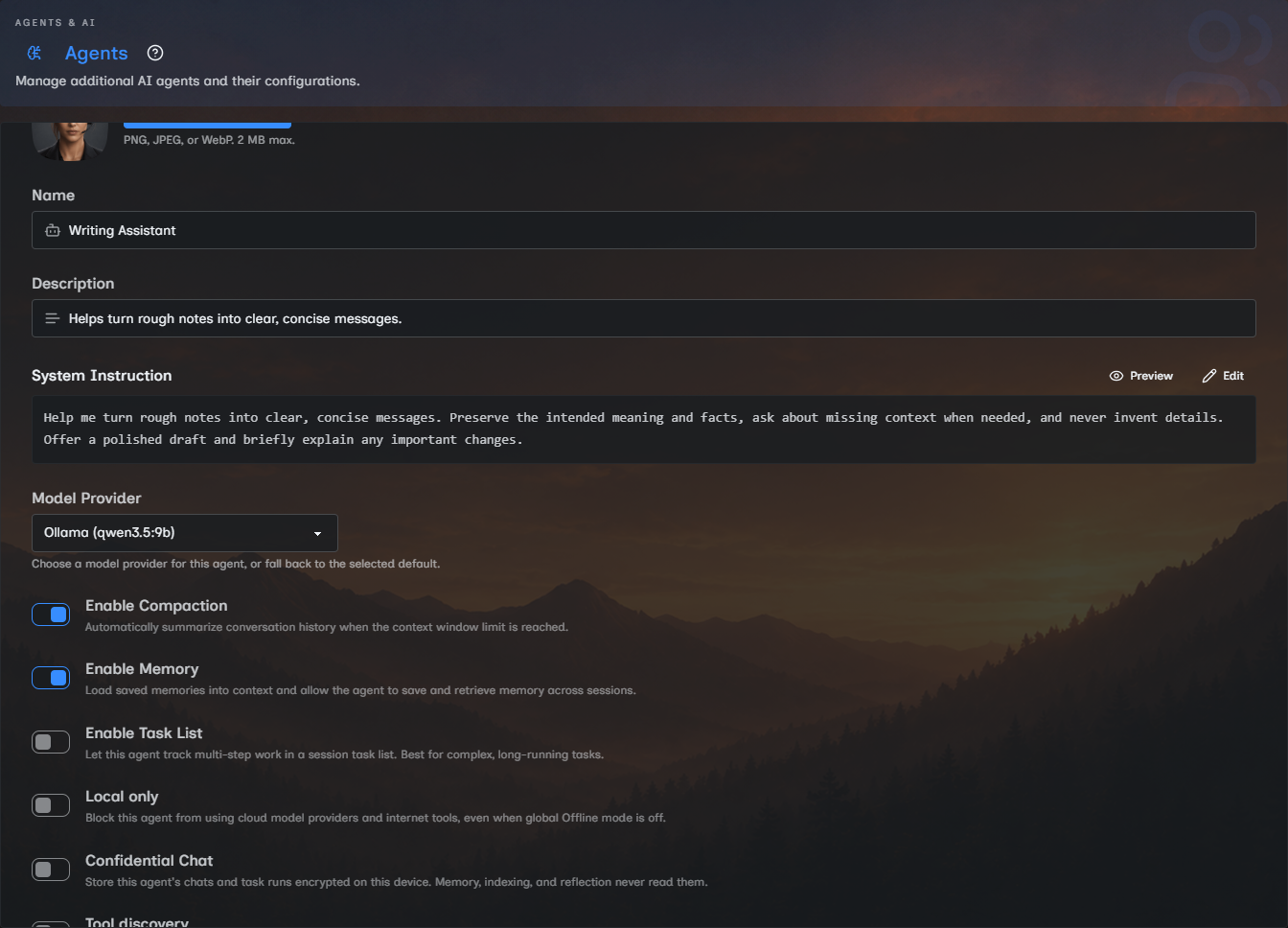
Agents define the working identity
An agent combines its name, instructions, model choice, selected tools, selected skills, memory behavior, task-list behavior, local-only policy, and file grants. Oscova creates a main agent during onboarding, and you can add custom agents for focused jobs.
Agents can also be exposed as tools so another agent can delegate work to them. Admins and moderators can share agents with other users while keeping each user's personal context separate.
Saving an agent updates later runs. A response already in progress keeps the configuration it started with.
Tools perform actions
Tools are callable actions such as reading a file, searching a service, or running a command. They may come from built-in toolsets, plugins, MCP servers, or another agent exposed as a tool.
Encrypted file tools are a separate confidential-only surface over ordinary allowed workspace paths. Their filenames must end in .enc, preserving the original extension before it, such as notes.md.enc. Workspace file tools and shell commands see ciphertext. After the Vault Password gate is unlocked, the Files editor decrypts authenticated encrypted text and encrypts it again on save.
Note
MCP means Model Context Protocol, a standard way for another program or service to expose tools.
An agent sees a tool only when all relevant controls allow it:
- The tool exists and is selected for the agent or task run scope.
- The agent's runtime mode permits it. Confidential agents omit host-restricted tools, including the action that saves persistent memory notes.
- Offline or local-only policy permits its effective network scope.
- The agent's approval policy does not deny it.
- Tool discovery exposes it immediately, through a pin, or after a search.
- Runtime approval, call limits, hooks, and input validation permit the call.
An auto-approve setting cannot bypass a confidential-agent restriction, offline block, denial, call limit, or file-access boundary.
With tool discovery enabled, selected pinned tools are visible immediately. Other selected tools stay out of the initial prompt until the agent finds them through tool search. Confidentially restricted, denied, or offline-blocked tools are not returned by that search.
Approval-required tools are unavailable to an agent while it is being called as a tool because that delegated run has no approval channel.
Use Settings > Tools to inspect qualified names, effective network classifications, overrides, and 24-hour call limits. Select tools and set agent-specific approval behavior in Main Agent, Agents, or a task run scope.
Skills provide focused guidance
Skills are imported packages containing instructions and optional resources or scripts. An agent sees only the skills selected for it and loads their detailed content when needed.
Note
A skill normally contains SKILL.md and may include scripts/, references/, or assets/.
Skill script execution uses one configured mode:
- Disabled prevents skill scripts and shell commands from running.
- Host runs them directly on the machine running Oscova and is the default.
- Container Sandboxed runs them inside the configured Docker sandbox.
Caution
Host commands use Oscova's operating-system account permissions. Auto-approved shell commands run without a human prompt, and offline runs reject host execution because it cannot guarantee no egress.
File tools and shell tools can use the same approved files without sharing an execution process. File tools resolve and validate paths on the host. In Container Sandboxed mode, the shell sees those same files through bind mounts.
Agents can also receive approval-governed tools for creating or updating markdown-only skills. Successful changes become available to later runs.
Prepare chat and automation
Before using an agent, review this chain:
- Instructions define what the agent should do.
- Tools define what it can call.
- Skills supply task-specific guidance.
- Workspace grants define which files it can reach.
- Privacy and governance controls narrow those capabilities at runtime.
Interactive chat can ask before approval-required calls and shows the target plus expanded arguments for shell or skill-script execution. Scheduled tasks cannot pause for a person, so each task must explicitly auto-approve or auto-reject those calls. Review its agent, run scope, tools, and file grants before enabling it.