Custom Agents
Last updated:
Custom agents are specialized assistants with their own instructions, model behavior, tools, skills, memory settings, and file access. Use them when one general assistant is too broad.
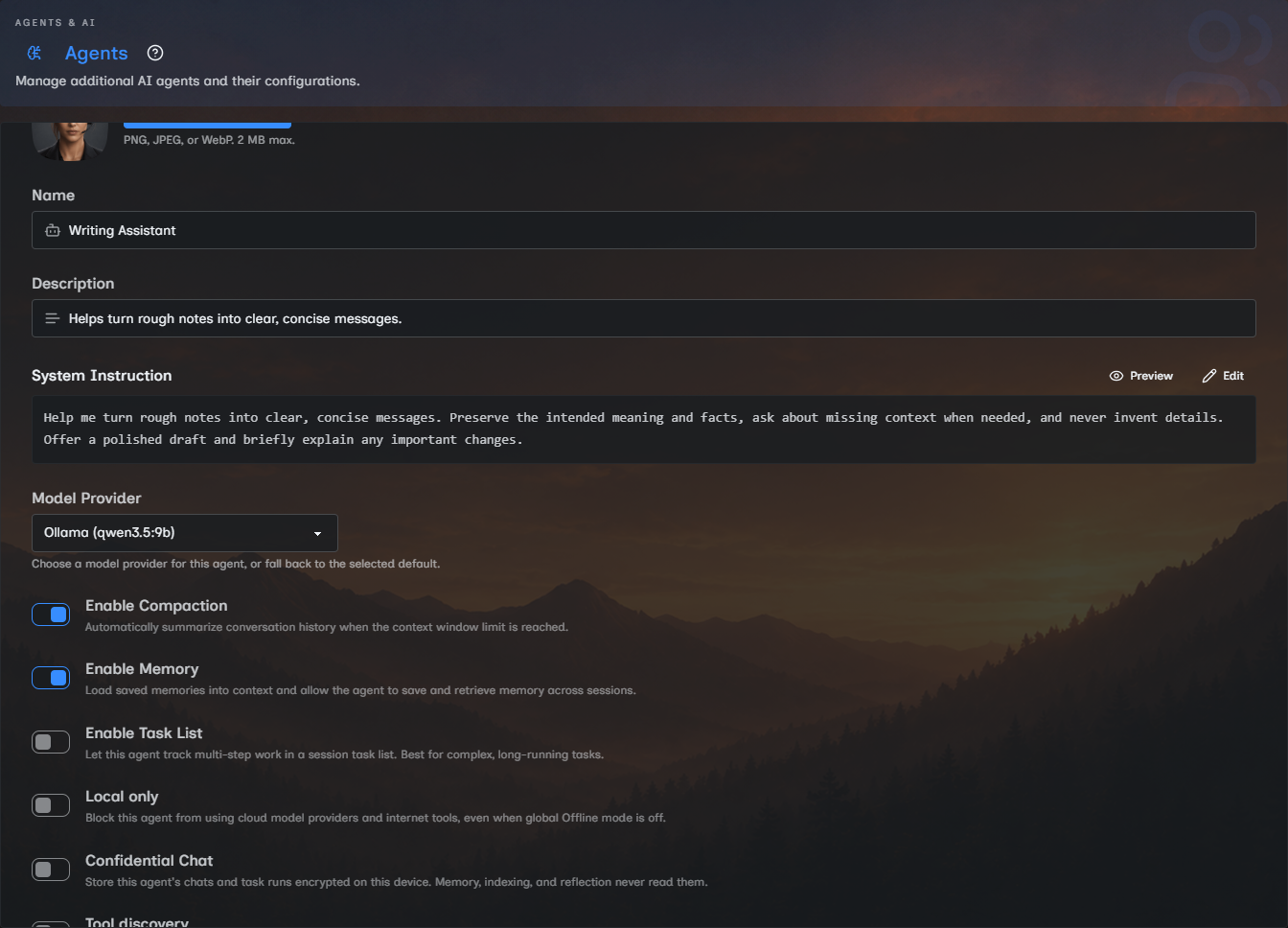
Create an agent
Open Agents settings and click New Agent. Oscova immediately saves a uniquely named agent and opens its editor. Rename it, fill in the description and system instruction, review access, then click Save.
Choose a built-in profile picture or upload a PNG, JPEG, or WebP image up to 2 MB.
Preview reads the saved instruction. Save edits first, then use Preview to inspect the resolved text and token count after variables such as {{ current_date }}, {{ user_name }}, and {{ user_timezone }} are filled.
Configure behavior
Custom agents use the same major controls as the main agent:
- Default Model Provider is used by tasks left on Use agent default and when another agent calls this agent. Chat and explicit task selections override it. Choose Use app default to fall back to the app-wide provider.
- Enable Compaction summarizes long conversations.
- Enable Memory enables cross-session memory when embeddings are configured.
- Enable Task List lets the agent track multi-step work in chat.
- Local only blocks cloud model providers and internet tools for this agent.
- Tool discovery keeps unpinned selected tools deferred until search.
- Allowed Tools, Agent Tools, and Skills choose capabilities.
- Workspace Folders and External Directories choose file access.
Note
Custom agents do not automatically inherit every main-agent setting. Review each agent as its own working assistant.
When Tool discovery is enabled, the editor lets you pin selected tools. Pinned tools are visible to the agent immediately. Other selected tools remain searchable during the run. If you turn discovery off, saved pins are kept but all selected tools are exposed up front.
For external directories, choose the narrowest access that works. Read Only is usually right for reference material. Read & Write is for folders where you expect the agent to create or update files.
If saving reports a callable-name conflict, choose a name that normalizes differently from every other custom agent. If it reports a workspace mount conflict, give external directories unique labels.
Export or import an agent
From Agents settings, use the download action on an agent card to create one .oscagent file. The package contains the agent instructions, selected tools, tool approval rules, skills, compatible workspace names, behavior settings, and profile picture.
The package never includes chats, memory, tasks, private agent notes, ownership, sharing, or direct folder grants. Import removes sub-agent links. Confidential agents cannot be exported.
Click Import and choose a package up to 5 MB. You can keep its saved name or enter a different one. Import always creates a new agent, and Oscova adds a number when the name is already in use.
The receiving installation keeps only tools, workspaces, and model providers it has available. It removes other references and reports how many were removed. Open the imported agent to grant any other folders it needs.
Protect an agent with Confidential Chat
Create and unlock your Vault Password, then enable Confidential Chat in the agent editor. The switch is unavailable while the vault is locked. A shared agent cannot be confidential because another user's chats are stored under that user's own key.
Starting with the next save, Oscova encrypts the chat title, messages, tool calls and results, rendered system instruction, and saved session. The same protection covers stored runs for that agent's tasks. The agent definition, its instruction, and the task definition's saved instruction remain readable on disk. Changing the Vault Password rewraps the same key and does not rewrite stored chats or runs.
Confidential conversations do not feed memory, indexing, or reflection. A confidential agent can read existing daily and long-term memory, but Oscova does not expose the save-memory action to it, even when that tool was selected or pinned. It therefore cannot add new persistent memory notes. Other agents cannot list or operate that agent's tasks. Enabling the switch permanently deletes the agent's existing conversation memory and search entries. Disabling it later does not restore them. Daily memory notes already written remain because they do not identify their source conversation.
Logging out does not lock the key, so background work can continue. A restart locks it until you enter the Vault Password again. A confidential scheduled run due while locked is recorded as skipped without running the agent. Recurring tasks remain enabled and run normally after unlocking. A skipped one-shot must be run manually.
Configured hooks still fire for confidential work, but receive identity and outcome shape without prompt text, attachments, tool arguments, task parameters, summaries, errors, or decision reasons.
Use encrypted text files
A confidential agent can use its assigned encrypted file tools after you unlock your Vault Password. They provide paged read, write and append, exact edit, and patch operations over ordinary allowed workspace paths. Every encrypted-tool filename must keep its original extension and end in .enc, such as notes.md.enc.
The filename and path remain visible, but the file content is authenticated ciphertext. Ordinary file tools and shell commands do not decrypt it. The Files editor opens valid encrypted text after the Vault Password gate is unlocked and encrypts it again on save. If the payload cannot be authenticated, Files shows the stored content unchanged. Other tools can still move, replace, or delete the underlying file if their normal workspace permissions allow it.
Disabling Confidential Chat keeps the files and saved tool assignments but makes the encrypted tools unavailable until you enable it again. The Panic Password preserves the vault and encrypted files unless a selected workspace action deletes those files.
Important
The switch applies when a thread is next saved. It does not retroactively rewrite content that is never saved again.
Use Host Shell when Docker cannot persist a host tool
In Container Sandboxed mode, normal commands run in Docker. If an agent is allowed to use Host Shell, it may ask for approval to run a foreground command as your current host user. Use Host Shell only for host-persistent installs or host-only tools.
Host Shell appears under Allowed Tools only in Container Sandboxed mode. Selecting it does not approve commands. Its default policy asks before every call. Explicitly choosing Auto Approve removes that prompt under the saved agent policy.
Keep normal project work on exec_command. Scheduled tasks and delegated agents cannot use Host Shell, even when the saved agent policy says Auto Approve.
Expose an agent as a tool
Turn on Expose as Tool when other agents should be able to call this agent. Then allow it from the caller's Agent Tools list.
This is useful for delegating a focused job, such as release notes, triage, or file cleanup, without putting all instructions into one agent.
An exposed agent does not become globally callable by itself. The calling agent must still select it in Agent Tools. A delegated call uses the called agent's instructions, default model provider, file access, compaction, and allowed tools, but approval-required tools are omitted because the child has no separate approval channel.
Within one chat, a delegated call continues the called agent's default conversation unless the caller supplies a conversation name. Reusing a name continues that line of work, while a new name starts a separate child conversation. Completed delegated conversations appear as read-only tabs in chat. A delegated call still does not attach that agent's memory, skills, private notes, Library context, todo list, or extra run providers. Run the agent directly when the workflow depends on those capabilities.
Edit or delete
Click Edit on an agent card to change it. Saved changes apply to future runs. A response already in progress keeps its starting configuration.
Delete removes the agent after confirmation, removes it from the chat selector, and cleans up its threads, scheduled-task references, and indexed chat memory for every user, including agents that are or were shared.
Caution
Deleting a shared agent affects every user who can see it. Confirm no one depends on it before removing it.