Agent Tasks
Last updated:
Agent tasks let Oscova run saved instructions through an agent on demand, on a schedule, after another task, or through an authenticated webhook.
Note
Agent task means a saved job with an instruction, an agent, optional model provider override, trigger settings, and run history.
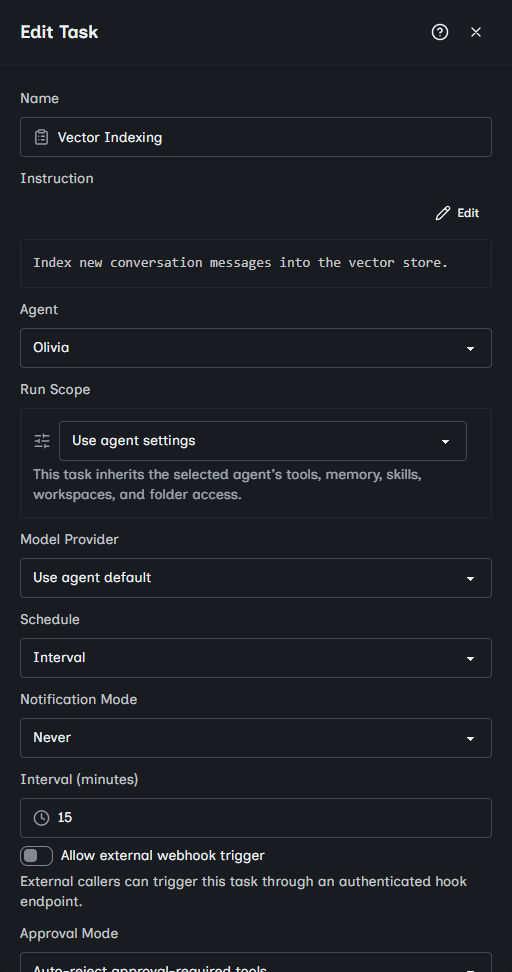
Create a task
Open Agent Tasks and click New Task. Choose the agent, optionally choose a model provider, and write an instruction specific enough to run without follow-up questions.
If the task model provider is left on Use agent default, the task uses the selected agent's Default Model Provider. If that agent has no saved default, the task uses your app-wide default provider.
Tasks use the selected agent's tools, skills, memory setting, workspace access, and system instruction. Review that agent before scheduling work with side effects.
Use Run Scope to decide whether the task should inherit the agent's runtime surface or carry task-specific settings:
- Use agent settings keeps the task aligned with the selected agent.
- Custom task settings stores task-owned tools, approval overrides, tool discovery, compaction, memory, task-list, local-only, agent-tool, skill, workspace, and folder-access settings.
Custom task scope is useful when a daily job needs narrower access than the agent usually has, or when a task needs one extra folder without changing the interactive chat agent.
Important
A custom task scope does not edit the agent definition. It is saved on the task and applies to future runs of that task.
Good task instructions include:
- The input source.
- The expected output.
- Where to save or send the result.
- What to do when data is missing.
- Whether the task should be quiet or notify someone.
Managing tasks from chat
Ask an agent to manage scheduled work in ordinary conversation. The agent can list your tasks, inspect one task and its recent runs, create a task, change a task, run one immediately, or delete one.
Before creating a task, the agent should confirm the schedule and ask whether you want completion notifications. No notifications are added unless you request them.
A proposed create, update, delete, or immediate run appears as an approval card (a review panel shown before the action can happen). The card identifies the task and owning agent. Create and update cards also show the proposed schedule and how approval-required tools will behave during unattended runs.
Important
Auto-approved during runs means the scheduled task may use tools that normally require you to approve each call. Host shell commands can change the machine running Oscova. Approve this only when you trust the task instruction, agent, tools, credentials, and file access.
Tasks created from chat show an Agent-created badge in the task directory and details dialog. Its tooltip identifies the agent that originally created the task, even if a different agent later owns it.
Choose a trigger
Agent tasks support several trigger shapes:
- Interval repeats every chosen number of minutes.
- One-shot runs once at a date and time.
- Cron runs on a recurring pattern in a selected timezone.
- After another task runs when the selected upstream task completes successfully.
- Allow external webhook trigger lets an outside system start the task by URL.
Note
Cron is a compact schedule pattern, such as every weekday morning. The task dialog helps build it, but advanced expressions still need review.
Use webhooks
Turn on Allow external webhook trigger when another system should start the task. Oscova shows a relative endpoint path based on the task's webhook slug.
Note
A webhook is a URL another program calls to make something happen. In Oscova, the webhook starts the saved task.
Webhook-enabled one-shot tasks cannot use Delete task after run. Leave it off so the status URL returned to the webhook caller remains available after the run completes.
Webhook parameters define which JSON fields callers may send. Add a parameter when the task instruction expects input such as customerId, ticketId, or summaryText. Mark it required when the task should not start without that field.
An administrator must create a task webhook API key before external systems can call the endpoint.
Webhook callers send Authorization: Bearer <token> and a JSON body with a parameters object. When the run is accepted, Oscova returns a run ID, status, message, and status URL. If the task is already running, the caller receives a conflict response instead of starting a second copy.
Required parameters are validated before the task starts. Missing or wrong-shaped parameters produce a bad request so the caller can fix its payload.
Choose approval behavior
Background tasks cannot show the chat approval prompt. Required-approval tools must be handled automatically when a task runs:
- Auto-reject approval-required tools is safer for read-only routines and monitoring.
- Auto-approve approval-required tools is useful only after reviewing the task, agent, tools, credentials, and file access.
Important
Auto-approve removes the interactive approval step. Host shell commands can change the machine running Oscova, and broad tool access is not made safe by itself.
Operate tasks
The task directory shows status, agent, schedule, last run, enabled state, and actions. Use the row toggle to pause or resume a task without deleting it. Pausing prevents new runs but does not cancel a run already in progress. Use Run now to start a task immediately. It is disabled while the task is paused or already running.
Click a row to see details and recent executions. Use View runs for a larger recent run list and Inspect when a run has stored messages.
Deleting an active task stops its current run before removing the task and its saved history.
Tasks can also send outcome notifications. Never sends no automatic outcome notifications, Only on failure reports failed or skipped runs, and Always reports completed, failed, and skipped runs. If a task specifies a notification channel that is not registered, Oscova falls back to the in-app notification hub. A notification delivery failure does not change the recorded task outcome. Check application logs if the run finished but its notification did not arrive.
For a confidential agent, run transcripts, saved sessions, trigger parameters, summaries, errors, and the rendered instruction are encrypted. Notifications use a content-free body and stay in the in-app inbox. External status callers receive status, trigger source, and timestamps without summary or error content.
After a restart, a confidential task due before its owner unlocks the Vault Password is recorded as skipped without invoking a handler, tool, or hook. The task remains enabled. A recurring task runs at its next normal time after unlocking, while a skipped one-shot must be started manually.