MCP Servers
Last updated:
MCP servers extend Oscova Agents with tools from separate programs or services.
Note
MCP means Model Context Protocol. An MCP server is a separate process or HTTP service that exposes tools an agent can call.
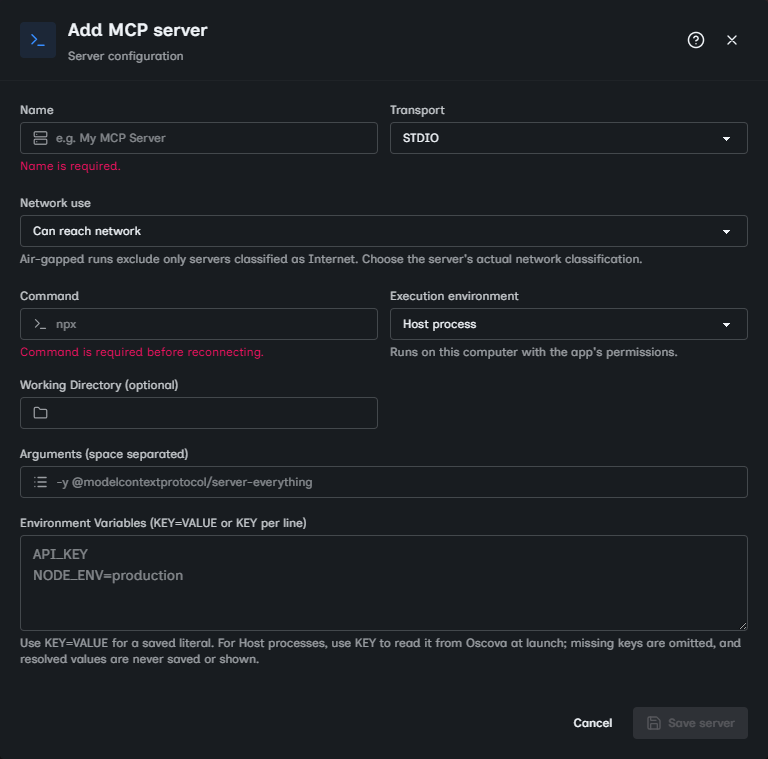
Add a server manually
Select Add server to open the server editor. The Save server button stays disabled until the required fields are present.
Every server also has a saved Network use declaration. New, imported, and registry-created entries default to Can reach network. Choose the server's actual behavior before saving:
- Local only means its tools do not use the network.
- Can reach network means local work may reach the network as a side effect.
- Internet means the tools' purpose is external network access.
Air-gapped runs exclude only servers declared as Internet. Servers declared Local only or Can reach network remain available. Oscova trusts this declaration. It does not inspect or isolate a STDIO process's network behavior.
For HTTP transport, enter:
- Name for the server label and tool-name prefix.
- Endpoint for the server URL.
- Optional Headers as
key=valuelines.
Header rows must include both a name and a value. Blank placeholder values from a registry result must be filled before saving.
For STDIO transport, enter:
- Name for the server label and tool-name prefix.
- Command for the executable to start.
- Optional Arguments, split by spaces.
- Optional Working Directory.
- Optional Environment Variables as
KEY=VALUEliterals or bareKEYpassthrough markers.
Argument rows cannot be blank. An environment-variable row must have a key. A stored literal value cannot be blank. If a server needs complex shell quoting, use a small wrapper script and call that script as the command.
For a Host process, Oscova disables full Host-environment inheritance and supplies only the MCP SDK's curated startup variables, such as PATH and standard system directories. KEY=VALUE stores and supplies that literal. Bare KEY reads the current Oscova Host value when the server launches. If the variable is absent, it is omitted. Only the bare marker is saved and displayed. The resolved Host value is never persisted or shown. Docker-sandbox environment handling is unchanged.
When you save a new server, Oscova persists it and tries to connect immediately.
Switching transport clears fields that do not belong to the new transport. For example, changing a server from STDIO to HTTP drops its command, arguments, working directory, and environment variables.
Find or import servers
Find online searches the public MCP Registry and opens the picked server in the same editor before saving. Registry discovery is available to authenticated users and the registry call itself is unauthenticated.
Treat registry results as discovery metadata, not a trust endorsement. Review the publisher links, command or endpoint, arguments, requested variables, headers, and execution environment before saving. A manual-only registry option cannot be installed from the picker.
Import JSON accepts common MCP config JSON from VS Code, Cursor, or Claude Desktop. Imported servers are appended to your current list and receive new IDs.
The importer accepts these shapes:
- A wrapper object with
servers. - A wrapper object with
mcpServers. - A bare server map such as
{ "server-name": { "command": "npx", "args": [] } }.
For STDIO servers, import reads command, args or arguments, cwd or workingDirectory, and env. For HTTP servers, it reads url or endpoint plus optional headers. Entries without a command, URL, or endpoint are ignored because Oscova cannot determine their transport.
Imported servers are not merged with existing rows. Review names, IDs, network use, arguments, environment variables, and headers before relying on imported tools.
Registry and imported entries can contain placeholder credentials or runtime-specific commands. Saving will fail if required placeholder values are still blank. An import success message confirms that entries were saved, not that every server connected. Inspect the rows and reconnect after correcting any missing runtime or value.
An agent can also search and install registry entries when its registry tools are enabled. Installation requires your approval, including the proposed Network use declaration. If a runtime or required value is missing, Oscova saves the server as pending so you can finish it in Settings. A successful live install assigns the discovered tools to the requesting agent.
Manage existing servers
The table shows each server's name, ID, transport, connection summary, and option counts. A Ready badge means only that the minimum configuration fields are present. It is not a live health check. Incomplete means the server is missing a required name, endpoint, or command. Live connection success or failure is reported by the add, edit, or reconnect action.
Use the row actions to:
- Open details by selecting the row.
- Edit and reconnect one server with the pencil button.
- Duplicate a server with a new ID.
- Delete a server and disconnect its tools.
- Select Reconnect all to restart every configured server.
Tool changes are synchronized after add, edit, delete, and reconnect operations. Agents may still need tool governance settings updated before they can call newly discovered tools.
Add and edit operations save the server separately from the live connection result. If connection fails, the server remains in the list and Oscova shows a warning with the failure reason so you can edit and reconnect.
Reconnect attempts are bounded. A single add or edit tries to connect the affected server, while Reconnect all walks every configured server and reports how many could not reconnect.
These operations update the live tool collection. They do not require an Oscova restart. A connected STDIO process that exits loses its tools until it reconnects.
For STDIO servers, the execution environment decides where the process starts:
- Host process starts the command with the Oscova host's permissions. Trust the command as you would any locally installed program.
- Docker sandbox starts the server inside the sandbox image, requires Docker, and mounts the user's workspaces read/write under
/workspace/<name>.
HTTP servers are remote endpoints and do not use an execution environment. A STDIO command is local to its selected execution environment, but the process can still make its own network requests. For either transport, the saved Network use declaration controls air-gap tool filtering. Oscova does not infer it from the endpoint or command.
If an HTTP server needs authentication, add headers in the server editor or use the server's own credential mechanism. MCP headers and literal environment-variable values are stored in the signed-in user's MCP settings and shown in full in the editor and details dialog. They are not protected credential-store fields, so do not put a sensitive literal there unless that visibility and storage model is acceptable. Prefer a bare Host-process key when the required secret already exists in Oscova's environment.
Troubleshooting
- HTTP server stays unavailable: confirm the endpoint is an absolute URL, is reachable from the Oscova host, and has the required headers.
- STDIO server does not start: confirm the command is on
PATH, or use a full path where your host process can execute it. - Arguments look wrong: the editor splits arguments on spaces. Use a wrapper script if a server needs complex shell quoting.
- Imported JSON finds no servers: confirm the JSON contains
servers,mcpServers, or a bare server map with command or URL fields. - Save fails after registry import: fill every blank required header or literal environment-variable value, or replace an environment placeholder with a bare key.
- A row says Ready but tools are missing: Ready checks configuration only. Reconnect, then check the failure message, server logs, and tool governance settings.
- A duplicate tool-name error appears: rename the MCP server or conflicting tool so its qualified name is unique. Oscova rejects collisions with built-in, plugin, and other MCP tools instead of replacing an existing tool or its approval policy.