Verify that nothing leaves your machine
Last updated:
Oscova Agents sends no telemetry. You do not have to take that on trust: a short packet capture on your own computer shows every connection the Host process makes, and this page lists the connections you should expect so you can account for each one. A second check on your own disk shows that your stored conversations are unreadable without the Vault Password.
Note
Egress means data leaving the machine or local network for an outside service. The Egress Audit on the Dashboard records egress made by agent runs. The capture below also shows what the Host does outside agent runs, such as update checks and model downloads.

Before you start
pktmonships with Windows 10 and 11. The steps below use it in an administrator PowerShell window.- Wireshark reads the capture; its installer also provides
mergecapandeditcapinC:\Program Files\Wireshark, which the steps add to the session'sPATH. - Process Monitor from Microsoft Sysinternals shows which process made each connection. It runs without installation.
What to expect
Every connection below is started by something you did or by a check you can see. The update and download requests carry no conversations, settings or usage. Your messages go only to your model provider, to the Internet tools you let the agent use and to the channels you connect.
| Host | When | What it carries |
|---|---|---|
api.nuget.org, azuresearch-usnc.nuget.org |
At start and about every 6 hours for the update check, when you check for updates yourself, and when you search for or install a plugin on the Plugins settings page | Package downloads, version lists and plugin search results. No data about you. |
oscova.ai |
The install command, the Avatar Engine release check (at start, about every 6 hours, and when you check for an engine update yourself) and the engine download, which continues from a Cloudflare storage address | The install script, the engine's version number and the engine package. |
huggingface.co and a Hugging Face download host (*.hf.co) |
Once, when you select Download model for local speech recognition | The Whisper speech model (about 148 MB). |
github.com and release-assets.githubusercontent.com |
Once, when you select Download model for local speech synthesis | The Kokoro voice model (about 326 MB). |
| Your model provider | Every chat turn | Your messages, to the provider you configured. With a local provider such as Ollama this stays on your machine or LAN. |
| Internet tools you enable | When the agent calls a tool classified as Internet, such as web search | The tool's request, such as the search query, to that tool's service. Each call is listed in the Egress Audit. |
| Messaging channels you connect | When an agent replies on a connected channel such as Discord, Telegram or Slack | The reply, to that channel's service. Each reply is listed in the Egress Audit. |
Windows itself, your browser and other programs make their own connections. The Ollama desktop app, for example, checks ollama.com for its own updates. Filter by process name so you only see the Host, which runs as Oscova.Agents.App.exe.
Capture a session on Windows
Open a PowerShell window as administrator and start the capture. Multi-file mode writes a new numbered file every 4 GB instead of overwriting the oldest packets, so nothing is lost during a long session:
pktmon start --capture --comp nics --pkt-size 0 --file-size 4096 --log-mode multi-file --file-name capture.etlTo see which process made each connection, start Process Monitor now with the filters from the next section.
Use Oscova as usual for a few minutes: chat, install a plugin, download a speech model.
Stop the capture and convert every part, then merge them with Wireshark's
mergecap:pktmon stop $env:Path += ';C:\Program Files\Wireshark' Get-ChildItem capture*.etl | ForEach-Object { pktmon etl2pcap $_.Name -o ($_.BaseName + '.pcapng') } mergecap -w merged.pcapng (Get-ChildItem capture*.pcapng).NameOpen
merged.pcapngin Wireshark and choose Statistics > Endpoints with name resolution on. Compare the hosts with the table above, then use Process Monitor to see which process contacted any host you cannot account for.
Important
On a Wi-Fi adapter, pktmon writes raw wireless frames. Re-tag the file first with editcap -T ieee-802-11 merged.pcapng merged-wifi.pcapng and set the Wireshark preference IEEE 802.11 > Ignore the Protection bit to Yes - without IV.
See which process made each connection
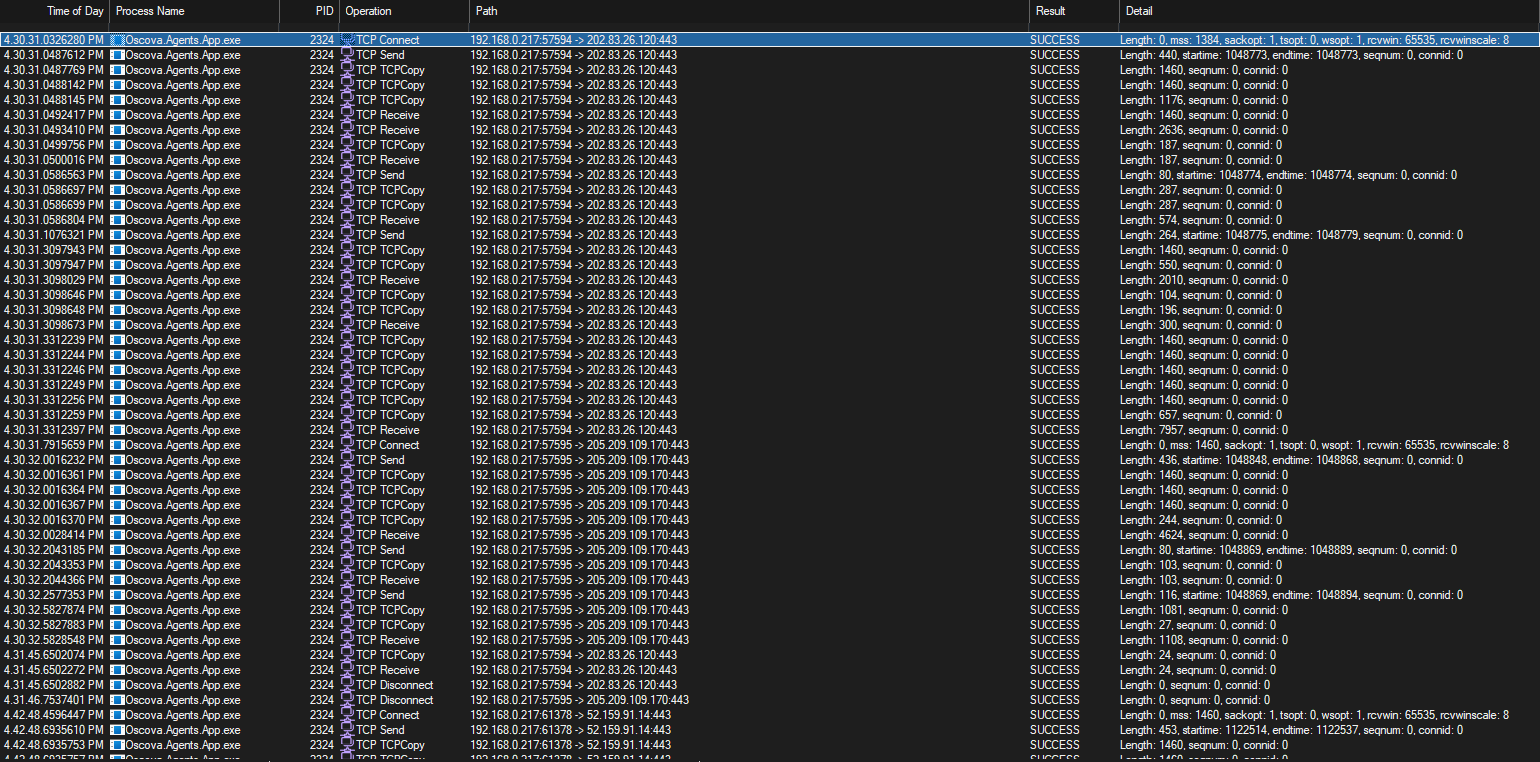
Process Monitor attributes each connection to a process. Run it as administrator before you start using Oscova (step 2 above), and add the filters Operation begins with TCP, Operation begins with UDP and Process Name is Oscova.Agents.App.exe. The Path column shows the local and remote address of each connection; match the remote addresses with the names in Wireshark's endpoint list.
Check what agent runs sent out
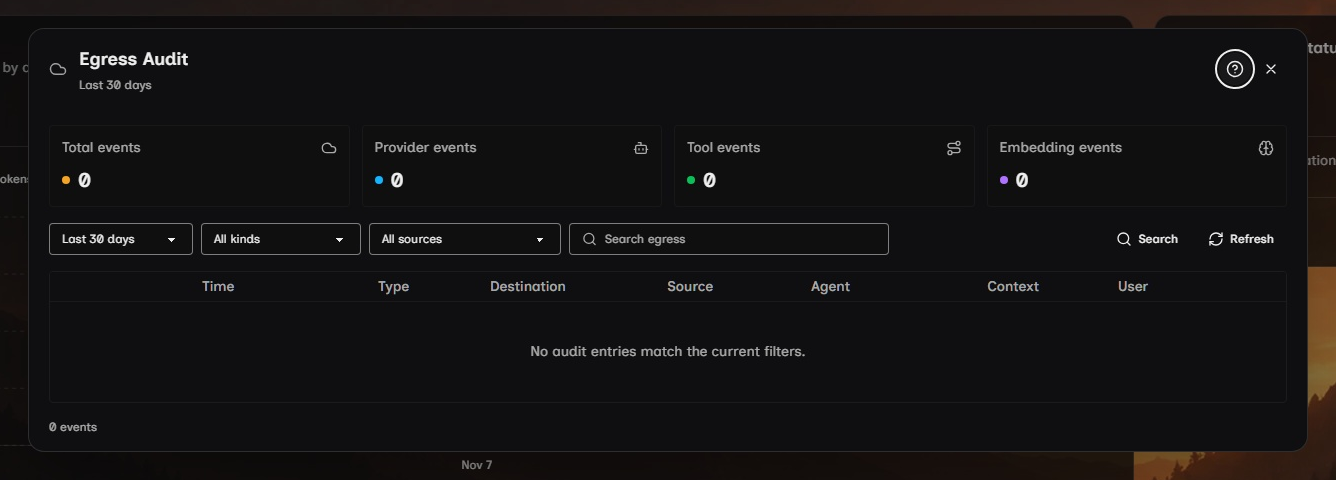
The Dashboard's Egress card counts data-leaving events from agent runs. Select Audit to open the Egress Audit, which lists each provider call, tool call and embedding request with its destination. Local provider calls create no entries, so with a local chat model, a local or no embedding provider, no Internet tool calls and no connected channels the list stays empty.
Keep agent runs offline
Enable Keep agent runs offline under Settings > Accounts & Access > Privacy and select Save Privacy Settings. Cloud providers are rejected and tools classified as Internet are not offered to the agent. The agent can still ask to run a shell command; the approval prompt shows the exact command, so deny any command that would reach the network.
Check what is stored encrypted
Send a chat message that contains a phrase nobody else would write, such as
ORCHID-7731.Stop Oscova with
oscova stop.Search the data folder for the phrase. It is
.oscova\app_dataunder your user profile, or the folderOSCOVA_APP_DATA_DIRpoints to when you set that variable:Get-ChildItem "$env:USERPROFILE\.oscova\app_data" -Recurse -File | Select-String -Pattern 'ORCHID-7731' -List
An empty result means no scanned file holds the phrase in readable form. Your conversation files are under users\<id>\chat in that folder, so check that the scan reached them. The Privacy article lists what is stored encrypted and what stays a plain file, and why.