Voice
Last updated:
Voice lets you dictate messages, hear replies, and run a hands-free chat loop. Oscova can use local speech models or configured hosted speech providers.
Note
ASR means automatic speech recognition: turning microphone audio into text. TTS means text-to-speech: turning agent text into spoken audio.
Choose speech providers
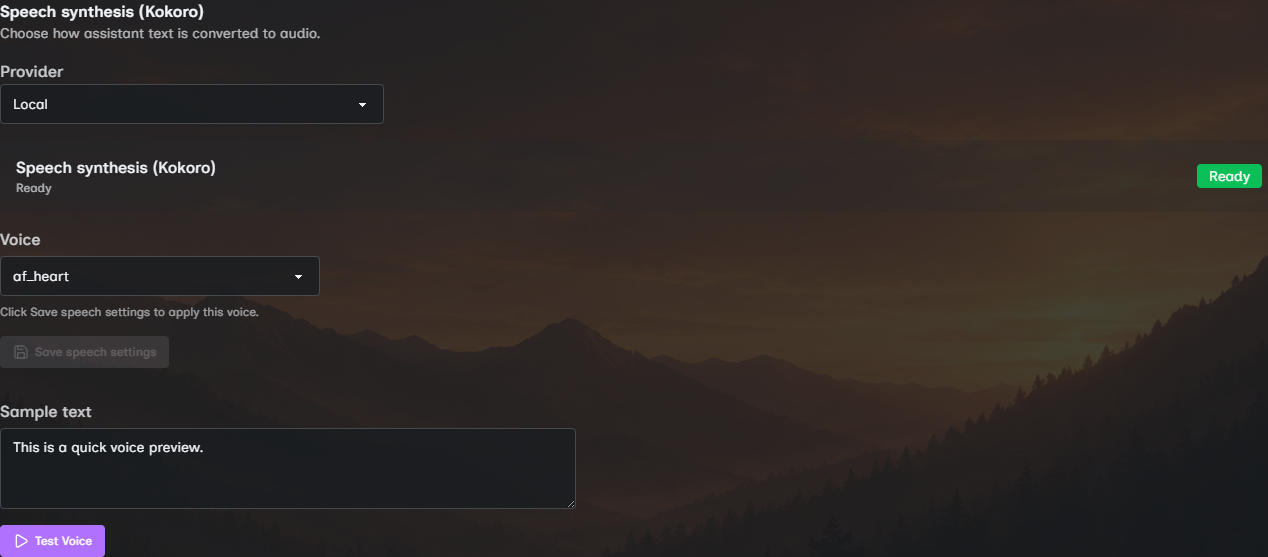
Open Speech settings. Speech recognition and speech synthesis have separate, per-user provider selectors available to every role.
Local providers show download cards for the required models. Hosted OpenAI providers show credential and model fields, and OpenAI synthesis also shows a voice selector.
Provider, credential, model, and voice changes are drafts. Clicking either Save speech settings button saves all current speech drafts. Save before using Test Voice, because the test uses the saved synthesis provider and voice. Changing the synthesis draft can preview that provider's voice list without saving it.
Download local models
Use local speech when you want on-device voice features.
- Speech recognition enables microphone input.
- Speech synthesis enables spoken replies and voice preview.
- Local recognition uses the Whisper model download.
- Local recognition detects the spoken language automatically.
- Local synthesis uses the Kokoro model download.
- Download cards show progress and can cancel active downloads.
- Ready status appears after each local model is installed.
The local files are not bundled, so downloading them makes an outbound network request from the host. The voice selector and Test Voice button stay disabled until the saved synthesis provider is ready.
Choose and test a voice
Pick a voice, enter Sample text, then click Test Voice. The test button activates only when synthesis is ready and the sample text is not empty.
For local synthesis, the voice dropdown is disabled until synthesis is ready and voices have loaded. Each local choice shows the voice name, gender, and language, while Oscova saves its provider voice ID. For OpenAI synthesis, Oscova offers the built-in OpenAI voice list. In both cases, click Save speech settings to make the selected voice the saved voice for future replies.
The default OpenAI models are gpt-4o-mini-transcribe for recognition and gpt-4o-mini-tts for synthesis. You can edit the model fields before saving if your account or deployment uses different model IDs.
OpenAI speech is considered available when the linked credential has a stored value. Actual transcription or synthesis can still fail if the key, model, account access, or endpoint is invalid. OpenAI recognition sends recorded audio to the configured endpoint. OpenAI synthesis sends reply text. Local Whisper and Kokoro process those inputs on the Oscova host.
Use voice in chat
The dashboard has three voice controls near the input:
- The microphone dictates one message.
- The speaker reads agent replies aloud.
- Voice mode starts a hands-free listen-and-speak loop.
Important
If these controls are greyed out, return to Speech settings and confirm recognition and synthesis are ready.
Your browser must grant microphone access. A single push-to-talk recording is limited to 20 MB when it is transferred from the browser.
Avatar speech output
Admins can choose Browser only, Browser and avatar, or Avatar only. Avatar routing also requires the separate avatar engine to be configured and reachable.
This routing selector is visible only to admins and saves immediately. Non-admin users always receive speech in the browser, regardless of the saved admin routing mode.
Browser and avatar keeps browser playback if avatar delivery becomes unavailable. Avatar only has no browser-audio fallback, so confirm the avatar engine is ready before selecting it.
Troubleshooting
- If the microphone button is disabled, confirm the selected recognition provider is available.
- If spoken replies or Test Voice are disabled, confirm the selected synthesis provider is available.
- If local speech is selected, download the corresponding model and wait for the card to show Ready.
- If OpenAI speech fails, confirm the saved credential has a value and the model ID is valid.
- If recording will not start, allow microphone access in the browser and retry.
- If a draft sounds unchanged, save it before testing. Test Voice uses the saved provider.
- If avatar-only output is silent, confirm the avatar engine is running and reachable from Avatar settings.