Main Agent Chat
Last updated:
The dashboard is the main chat workspace. Use it to start a conversation, choose its agent, attach files, approve tools, use voice, and inspect the work behind a response.
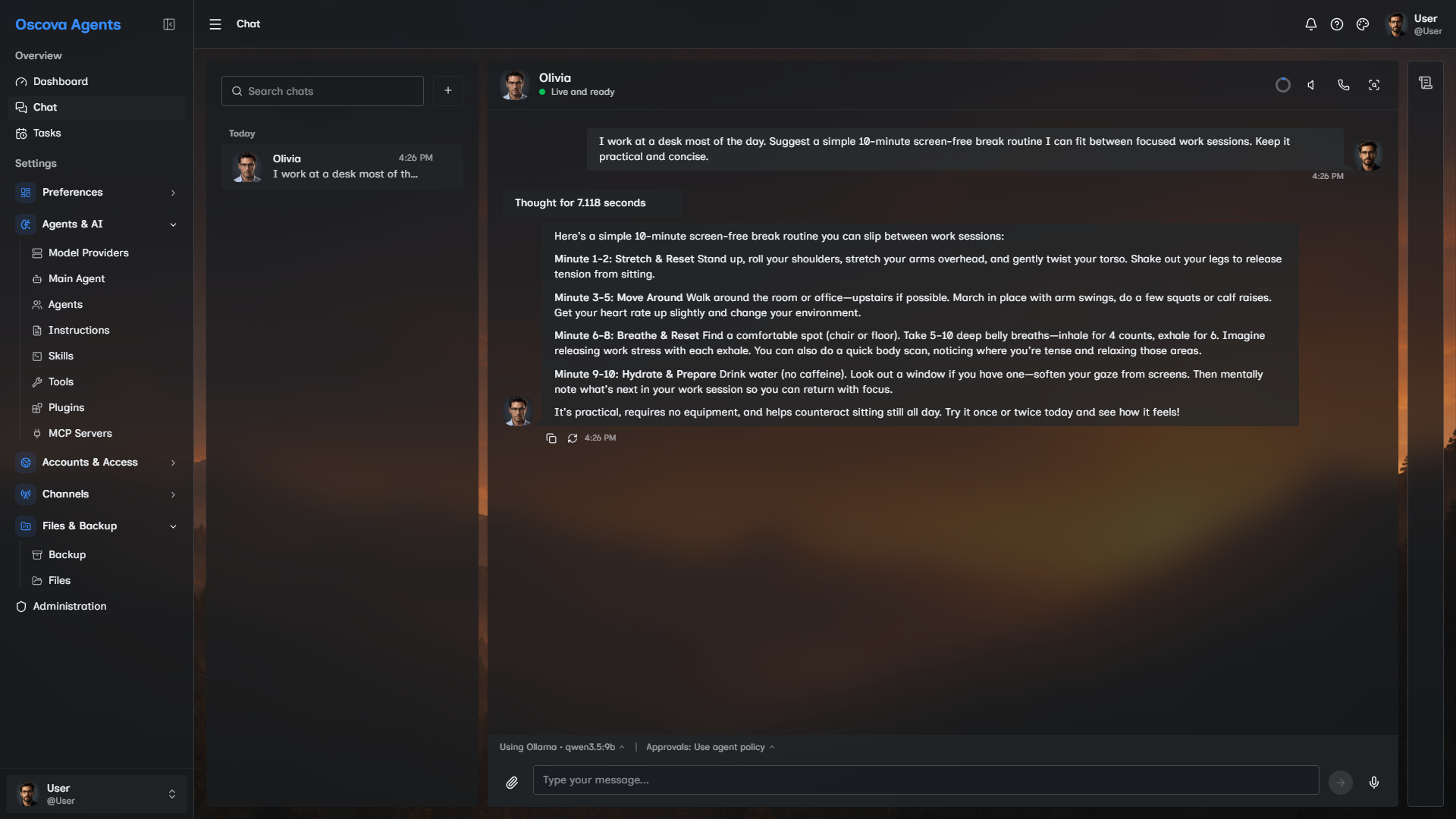
Send a message
On an empty chat, select a starter card to fill the message box. Edit the prompt if needed, then click Send. A starter card never sends by itself. You can also send supported attachments without typed text.
While New chat is checking the selected provider, it shows progress. If no provider exists, add one. If providers exist but none is the default, choose one beside the message box. If the check fails, fix the provider or credential and select Retry now.
Once a response is accepted, it keeps running if you navigate away, switch threads, refresh, close the tab, or end a CLI viewer. You can use another screen or chat while it works.
Return to any active thread to see its current partial response immediately and continue watching it update live. New content follows the bottom while you remain near it. If you scroll upward to read earlier content, following pauses and Jump to latest appears. Different threads can generate at the same time. If a run pauses for tool approval or an elicitation answer, returning to the thread shows the current interaction card so you can answer it and continue the same run.
While the agent is actively generating, the Send button becomes a stop control. Click it to cancel the active run in the selected thread. Runs in other threads keep working. If the run is waiting for approval or requested input, the composer stays locked and the interaction card must be answered. Shutting down the Oscova host also cancels in-flight work. Restarting the process does not resume those runs.
Stopping keeps any partial response already shown. A failed text response shows an inline Retry action. Retry sends the failed text as a new turn without replacing anything currently typed in the message box. Previous attachments are not uploaded again, so attach any files again if they are still needed. Attachment-only failures do not offer Retry. If starting or uploading fails, Oscova restores the draft and pending attachments when possible.
After a response finishes, use Copy beneath its final text bubble to copy the original Markdown. The copied text preserves Markdown syntax and code indentation instead of copying the rendered HTML.
Regenerate is available only on the latest completed response. It replaces that response without adding the prompt again and does not keep alternate answer versions. If the replacement run fails, the chat shows the existing failed-run recovery state.
Attach files with the paperclip before sending. Attachments belong to that message. They are not the same as long-term workspace files uploaded through the Files screen.
Chat attachments can include PNG, JPEG, GIF, WebP, TXT, Markdown, JSON, CSV, LOG, XML, YAML, and PDF files. A message can include up to 50 attachments, each attachment must be 10 MB or smaller, and the complete upload must stay below 200 MB. Larger reference material usually belongs in the Files screen or an assigned workspace folder.
If the active provider has Supports images enabled, the agent can use image analysis for supported image attachments. Without that flag, images remain attached files, but the agent may not be able to inspect their visual content.
When the selected provider has a saved Context Window Size, Oscova estimates the draft, prior session context, provider instructions, tools, attachments, and reserved output before sending. If the estimate is too large, you can cancel and shorten the message or continue anyway. Pending attachments are not uploaded until you choose to send.
The service status indicator checks the active provider. When it is red, the input row is disabled. Fix the provider, credential, or local service, then click Retry now.
Use slash commands
Type / as the first character in the message box to open conversation commands. Continue typing to filter, use Up and Down to change the selection, Tab to complete it, Enter to run it, or Escape to close the menu. You can also select a command with the pointer. Commands run locally and are not added to the visible transcript or sent to the agent.
/compactasks the selected model to summarize older session context while protecting the two most recent user turns. It appears after the chat has a saved model session. The visible transcript does not change, and pending attachments remain staged./contextrefreshes and opens the existing context-usage estimate. It appears when a model provider is selected and also works on a new draft./newstarts a new draft through the normal new-chat action. This clears pending attachments with the old draft./renameopens the existing rename dialog. It updates a new draft locally or uses the saved-conversation rename action after the chat has started. Pending attachments remain staged.
An unknown or currently unavailable leading-slash command stays in the message box and shows an error instead of being sent.
Choose an agent and provider
On New chat, use Agent beside the message box to choose who owns the conversation. The agent is fixed after the first message, so start another new chat to use a different agent.
Use the provider selector to choose the model connection for chat. You can change the provider between turns. The selected provider remains in place when you change the draft agent, and it does not edit any agent setting.
Note
A model provider is a saved connection to a local or hosted AI model. Chat-run provider choices do not change the agent's saved default.
The default chat provider initializes the selector. After that, only the provider selector changes the provider used by chat.
Review delegated agent conversations
When the active agent calls another agent, the called agent appears as a read-only tab after the parent run finishes. Select that tab to see the user and assistant text turns from the delegated conversation in order. Return to the parent tab to send another message.
The calling agent can supply a conversation name. Reusing the same name continues that line of work within the current chat. Choosing another name starts a separate conversation with the same called agent, and each conversation receives its own tab.
Child tabs do not accept messages, attachments, approvals, voice input, or run-option changes. If the parent run is still active, Stop remains available and cancels that parent run. Tool activity inside the child is not shown, partial child output does not stream into the tab, and failed delegated calls do not add child turns.
Approve tools
Use Approvals to decide how interactive chat handles tool calls. If a tool requires approval, Oscova shows the tool name and arguments before continuing. Shell and skill-script approvals start with their full arguments expanded and identify whether they run on the host or in Docker. Approving a skill script runs the whole script. Commands inside it are not approved separately. Return to the thread to answer an outstanding approval or information request.
Tool activity appears in the transcript as compact cards that stay collapsed until you open them. Each card contains status, arguments, and a result preview. Open a running card to see its elapsed time. Completed cards retain their final duration. Review these cards when a response surprises you.
The approval selector has three run modes:
- Use agent policy follows the approval mode saved on each selected tool.
- Auto-approve approves tools that ask for approval during this chat run.
- Auto-reject denies tools that ask for approval during this chat run.
Use auto-approve only when you have already reviewed the active agent, selected tools, workspace access, and provider choice. Host shell commands then run without a human prompt and can change the machine running Oscova.
Inspect activity
The bordered rail on the right opens Details, initially on Activity. It never opens automatically. When the current user turn contains tool calls, the rail badge shows that turn's activity count.
Activity groups retained tool calls beneath the user turn that started them. Approval and elicitation replies continue that turn instead of splitting the work into a new group. The current turn opens by default, while earlier turns stay collapsed until you select them.
Each entry is a dedicated, non-collapsible evidence card rather than a copy of the transcript card. File paths, search queries, commands, status, duration, and bounded retained results appear directly in the timeline. Approval and elicitation controls remain in chat and do not appear as Activity items.
Activity is an evidence view of observable tool work. It does not expose hidden reasoning and is not a complete event replay.
The standard panel grows left from the right edge. Use the expand control for a wider inspection view. This hides the desktop thread list in its drawer while leaving the conversation mounted and visible. On narrower screens, Activity overlays the dashboard, and on mobile it becomes a full-height sheet.
On larger desktop windows, drag the gaps beside chat to resize the conversation list and the standard Details panel. The browser remembers both widths on this device.
Long histories scroll inside Activity instead of extending the dashboard. New work follows the bottom only while you remain near it. If you scroll upward, Jump to latest appears so you can resume following when ready. The overflow menu also provides Expand all and Collapse all.
Inspect artifacts
Open Artifacts beside Activity to inspect the current files that this thread deliberately created or changed. Oscova attributes artifacts only to successful built-in file writes, edits that actually replaced content, and declared patch operations. File reads, attachments, web research, memory, shell side effects, failed writes, and no-op edits do not become artifacts.
Artifacts are deduplicated by path and show the current file rather than a saved copy or version history. Select a compact file card to open its preview. A successful attributed file-update card in Activity also offers Open artifact, which switches to the matching file without opening a second window.
The initial preview support is deliberately narrow:
- Markdown uses the same safe renderer as chat.
- Plain text, source code, JSON, YAML, CSV, XML, and similar text appear as escaped read-only content.
- Encrypted
.enctext shows authenticated plaintext when available and otherwise shows its stored text unchanged. Downloads remain encrypted. - PNG, JPEG, GIF, and WebP images use the browser's image viewer.
- PDFs use the browser's built-in PDF viewer.
- SVG and other unsupported formats show file details and a download action only.
Markdown and text previews are limited to 512 KB. Larger files remain downloadable. Their preview headers offer Copy for the original source, using the same temporary copied feedback as chat responses. Every preview header shows the path used by the agent, update time, and Download artifact action. Preview and download URLs contain only the thread and opaque artifact identifiers, never a filesystem path.
Artifacts never force Details open. Closing the panel does not remove files, and there is no per-artifact close button. If a current file is moved, deleted, or no longer permitted by the thread agent's workspace access, the preview stops serving it.
Use voice
Voice controls appear near the message input:
- Microphone dictates one message.
- Speaker reads replies aloud.
- Voice mode starts a hands-free listen-and-speak loop.
All voice controls require speech readiness. If they are disabled, check Speech settings for model downloads or provider configuration.
Manage conversations
Start a new chat with the plus button above the thread list. If you leave the new chat empty, returning to the dashboard can reopen the most recent saved conversation. Conversations are grouped under Today, Yesterday, Previous 7 days, and Older using your local time. Search checks titles and visible conversation messages, then shows the closest matches first without date grouping. Matching is case-insensitive but token-based, so partial words and typos may not match. On mobile, the thread list opens as a drawer.
For a temporary conversation, start an empty draft and select Incognito in the chat header before sending. The header shows a persistent notice while incognito mode is active, and the thread carries an Incognito badge in the list. After the first message is sent, the setting is fixed for that chat. Start another new chat to choose a different mode.
Incognito chats are not saved or added to memory. Oscova deletes them when you sign out, after about 30 minutes of inactivity, or when the app restarts. Attachments are deleted with the chat. Incognito mode does not prevent external models or tools from receiving content you send to them.
If the active incognito chat expires, Oscova opens a new ordinary draft and shows a notice. You can also delete an incognito chat directly from its row menu.
Hover a thread and use its row menu to rename or delete it. Rename accepts 1 to 120 characters and works whether automatic chat titles are on or off.
Caution
Deleting a thread removes its saved conversation, staged attachments, artifact list, and indexed chat-memory chunks. Files already written to a workspace remain. Export or copy important content first.