Plugins
Last updated:
Plugins add capabilities to Oscova Agents for every user of the app. The Plugins settings page is available only to administrators because enabled plugins run code inside the application process.
Note
A plugin is a .NET extension that runs as trusted code. Installing plugin files only makes the plugin visible. Enabling it controls whether it may load after the next restart.
Automatic official components
During startup, Oscova checks whether its official default plugins are installed. Missing defaults are downloaded at their reviewed versions and enabled automatically.
Installed defaults keep the administrator's saved activation choice. If a download fails, Oscova continues starting without that component and checks again on a later launch.
Foreground startup shows the current component's package name, a spinner, and counts of processed and remaining components. The progress bar measures completed installation attempts, not download bytes, so it can stay still while a large component installs. Each attempt leaves an installed or failed result, followed by a summary. Failures are counted separately, and Oscova continues starting. See application logs for details.
Redirected output, non-interactive terminals, and --no-interactive use ordinary progress lines. --quiet and --json suppress component feedback. Nothing is printed for components already installed or deliberately removed. After the core Host starts successfully, it prints the listening address and process ID unless output is suppressed. Detached startup reports failures through the normal application logs.
Install plugins online
Select Find plugins online to search NuGet.org for packages that declare the OscovaPlugin package type. Enter a package name or search term, then select Search.
Each result can show:
- Details for description, license, project link, and metadata.
- Install to immediately download and place the plugin payload under the Oscova plugin directory.
- A progress timeline for resolving, downloading, extracting, and installing.
Only administrators see the online search button. Installed packages appear in the plugin table as Inactive until you enable them and restart Oscova Agents.
Review the publisher, project, license, and package before selecting Install. Oscova validates the package shape, but it does not verify code signatures, publisher reputation, or whether the code is safe.
Online install uses the latest stable package version. Oscova accepts packages only when they have the expected plugin package type, a root oscova-plugin.json manifest, and a declared plugin assembly selected for .NET 10. The requested plugin package must be 25 MB or smaller.
Installation also restores the package's ordinary managed, native, and resource dependencies for the current operating system and processor. NuGet may temporarily download and extract substantially more data than the final current-platform plugin layout requires. If installation fails, Oscova removes the partial staging directory instead of exposing an incomplete plugin. After a successful install, the plugin loads from its installed files after restart and does not need the package feed to remain available.
If an installed plugin ID already exists in the plugin directory, the install is treated as a conflict instead of overwriting the existing plugin.
Enable a plugin
- Review the plugin row and its details dialog.
- Turn on Load On Next Restart for plugins you trust.
- Select Save Plugin Settings.
- Restart Oscova Agents when the warning appears.
Use Reset to discard unsaved toggle changes. Use Search plugins to filter the installed list by name, ID, or version.
Uninstall a plugin
- Turn off Load On Next Restart and select Save Plugin Settings.
- If the plugin is Active, restart Oscova Agents and return to Plugins.
- Select Uninstall, then confirm removal.
Note
Uninstall removes the installed package and any staged update, but keeps data and settings created by the plugin. An uninstalled official default is not restored automatically. You can install it again from Find plugins online.
Understand statuses
- Inactive means the plugin is installed but not running in this app session.
- Active means the plugin loaded when the current host process started.
- Load failed means the plugin was enabled at startup but could not load.
- Invalid manifest means the plugin's
oscova-plugin.jsonor referenced assembly failed validation.
The restart warning appears when the saved allowlist differs from what was loaded when the current process started.
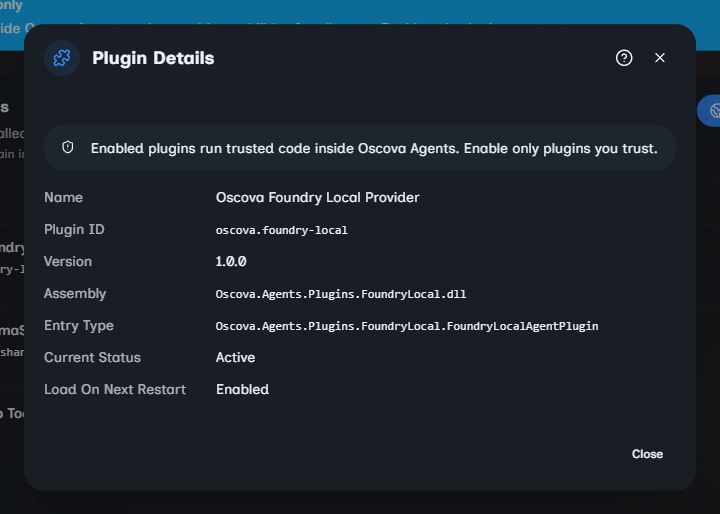
What the details dialog shows
The information button opens manifest and runtime details:
- Name, plugin ID, version, assembly, and entry type.
- Current status and next-start setting.
- Any diagnostic message from inspection or startup loading.
Diagnostics explain validation and startup failures. They are not a security review or trust endorsement.
Troubleshooting
- No installed plugins were found: confirm plugin folders are under the configured
app_data/pluginsdirectory. - A plugin stays inactive after enabling: restart Oscova Agents after saving.
- Save Plugin Settings fails: only installed plugins with valid manifests can be enabled.
- Online install reports a conflict: the plugin ID already exists in the plugin directory.
- Online install says the package is unsupported: confirm the package declares
OscovaPlugin, includes a rootoscova-plugin.json, and exposes the declared assembly as a .NET 10 runtime asset. - A dependency cannot be restored: confirm every ordinary package dependency and current-platform runtime asset is available from NuGet.org. Plugin-to-plugin dependencies are not supported.
- Online install says the package is too large: the package exceeds the 25 MB install limit.
- Online search fails: NuGet.org could not be reached or returned an upstream error.