General Settings
Last updated:
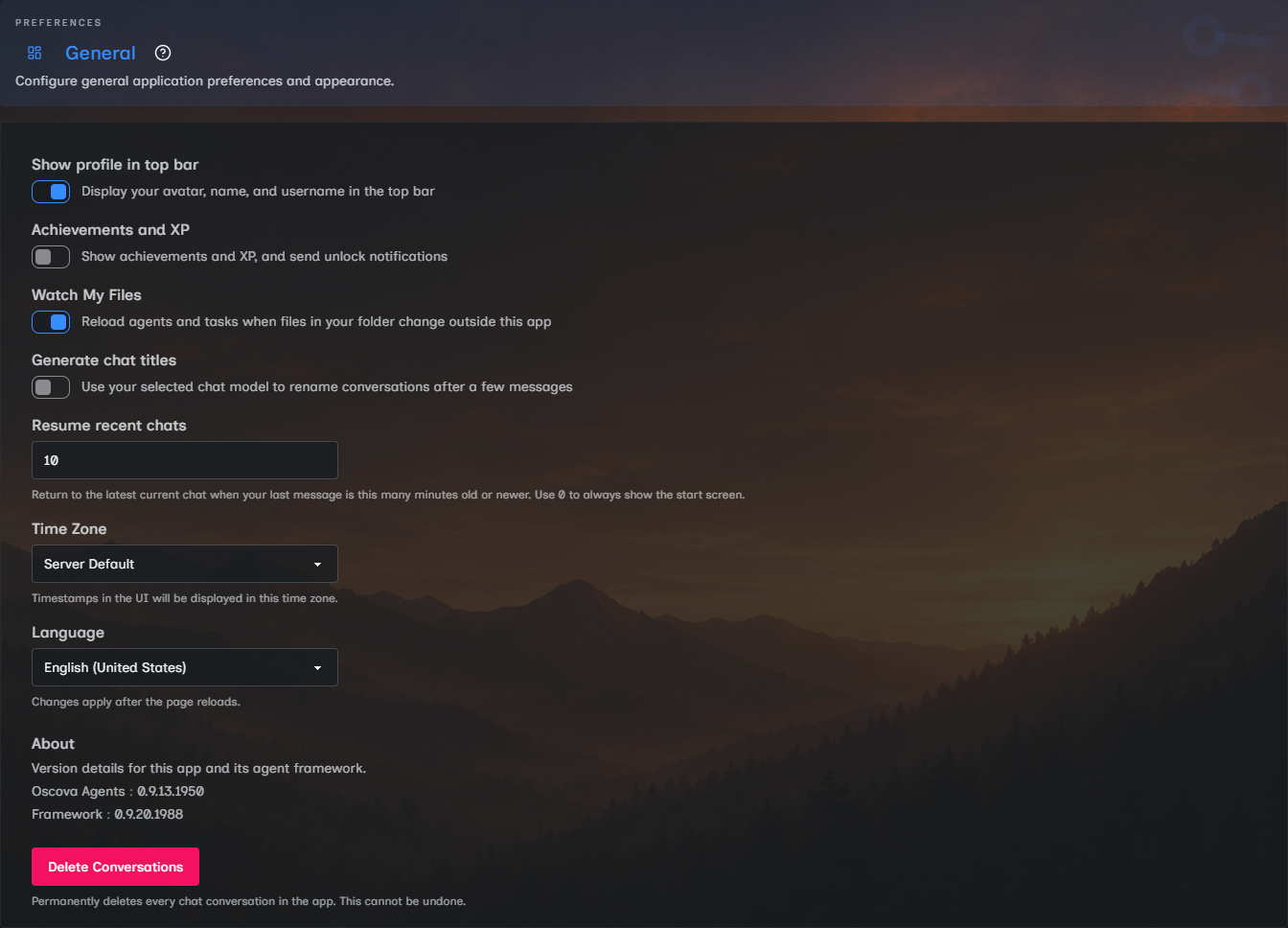
General settings control the signed-in user's day-to-day app experience: profile visibility, achievements, file watching, chat title generation, recent-chat resume behavior, locale, timestamps, app version display, and conversation cleanup. The top-bar Customization panel owns visual layout and wallpaper choices.
Note
General settings save to your account as you change them. Customization layout choices save in the current browser, while the selected wallpaper saves to your account.
Appearance and wallpapers
Open Customization from the top bar to choose a theme, sidebar style, font, text direction, fullscreen mode, and wallpaper. Theme, sidebar, font, direction, fullscreen, and wallpaper-effects choices apply immediately and are stored in the current browser.
Select Change wallpaper to choose one of the built-in images or upload your own PNG, JPEG, or WebP file up to 10 MB. The wallpaper saves immediately to your account.
Use Wallpaper and glass effects to switch between the selected wallpaper with translucent surfaces and a solid theme. Turning it off does not delete the selected image, so turning it back on restores that wallpaper.
Use Reset to restore browser-local customization defaults. Reset does not delete or replace your saved wallpaper.
For best results, use a 1920 by 1080 image. The wallpaper fills the available screen without stretching, so its outer edges may be cropped on displays with a different shape.
If the gallery cannot load, close and reopen it after checking the connection. A rejected file leaves the current wallpaper unchanged. Choose PNG, JPEG, or WebP and keep it at or below 10 MB.
Profile visibility
Show profile in top bar controls the identity block in the top bar. When enabled, the top bar can show your avatar, display name, and username. When disabled, that profile block is hidden from the top bar.
This only affects your UI. It does not change your account, role, or profile dialog.
Achievements and XP
Achievements and XP controls the complete achievements experience for your account. Turn it off to hide the Achievements profile-menu entry and top-bar level badge, redirect the achievements page to chat, and silence new unlock notifications.
Your underlying dashboard activity is unchanged and no permanent achievement record is stored. Turning the setting back on restores your currently derived badges and XP without replaying notifications that were suppressed while it was off.
File watching
Watch My Files reloads agents and tasks when workspace files change outside the app. Keep it on if you edit prompts, agents, tasks, skills, or workspace material in another editor. It does not trigger Library indexing. Manage Library through Settings > Files.
Turn it off when an external tool writes repeatedly and you want to avoid repeated reloads while you finish editing.
Chat titles and resume behavior
Generate chat titles lets Oscova use your selected chat model to rename conversations after a few messages. Leave it off if you prefer manually named or timestamped conversations, or if your chosen model should not spend extra tokens on title generation.
Resume recent chats controls whether returning to chat opens your latest current conversation or starts at the start screen. Enter the number of minutes your last message can be old and still be considered recent.
Set Resume recent chats to 0 when you always want the start screen after returning to chat.
Notification delivery and sounds
Notification delivery and sound effects are configured in Settings > Preferences > Notifications. Use that page to pause bell notifications, choose task notification behavior, show log warnings, show admin-only system errors, and control short UI sound cues.
Time zone and language
Time Zone controls how timestamps appear throughout the UI. Choose Server Default to use the server's local time zone, or search for a specific zone.
Language changes the UI culture. Oscova reloads the page after saving a different language so server-rendered and client-rendered text use the same culture.
Choose English, Spanish, Simplified Chinese, Hindi, Arabic, French, Bengali, Brazilian Portuguese, Indonesian, or Urdu. Each option uses its native language name. The same languages are available during first-time setup.
Changing the language also sets the matching text direction before the page reloads. Arabic and Urdu use right to left, and the other supported languages use left to right. This applies in General settings and first-time setup. The direction saves in the current browser, and you can override it afterward under Customization > Direction.
Note
UI language changes do not rewrite saved agent instructions, prompts, file contents, or chat history.
About
The About area shows the Oscova Agents host version and the reusable framework version. Include these values when reporting a bug or comparing behavior across installations.
Delete conversations
Delete Conversations removes all saved conversations for your account after confirmation. The button is disabled when there are no saved conversations.
This does not remove agents, tasks, files, credentials, providers, settings, or memory files.
It also means recent-chat resume has nothing to reopen until you create or open another thread.
Caution
Conversation deletion cannot be undone from the UI. Export a backup first if history matters.
Troubleshooting
- If a setting shows an error toast, retry after the connection recovers. The previous saved value remains in effect.
- If a language change does not appear everywhere, reload the page.
- If timestamps look wrong, choose the intended time zone instead of Server Default.
- If Delete Conversations is disabled, the account has no saved conversations to remove.