Execution
Last updated:
The Execution setting decides where agent shell commands and bundled skill scripts run for every account on this Oscova Agents installation. The operator opens Settings > Agents & AI > Execution to choose it.
Note
An execution environment is the device runtime that executes those commands: the host operating system, an isolated sandbox or a Docker container.
Select an environment
- Choose Execution environment.
- Wait for the automatic availability check, then select Save. An unavailable environment cannot be saved.
- Start a new run to use the saved choice.
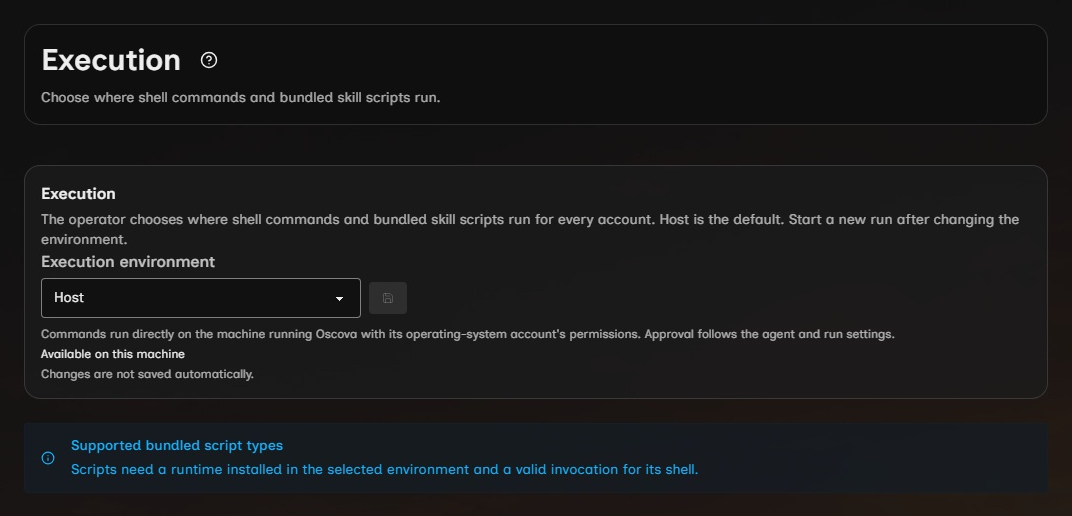
The built-in choices are:
- Host, the default. Commands run on the server for workspaces, or on the selected project's device for node projects, with that operating-system account's permissions.
- Disabled, which prevents shell commands and bundled scripts from running.
Optional plugins add their own choices after installation, enabling and restart. A saved unavailable environment stays visible with corrective guidance: enable its plugin and restart, or select and save another environment. Oscova refuses a command when its selected runtime is missing and never silently switches devices or environments.
- Saving refreshes available agent tools and cached agents. If affected work is active, Oscova asks before interrupting it and waits for cleanup before saving. An older run refuses later commands until you start a new run.
- An explicit operator Full access conversation selects Host only when execution is enabled. Disabled stays disabled.
- Host commands cannot guarantee no network access, so offline and agent-local-only runs reject them. Providers must explicitly support offline isolation before they can run in those modes.
- New Host shell processes receive standard shell, home, system-root and temporary-directory environment variables rather than inherited application secrets.
Microsoft MXC
The Microsoft MXC plugin is installed by default. Select it and save to use native operating-system isolation. Installation alone does not change the default Host selection.
- MXC applies existing workspace permissions to shell processes. Writable folders permit real changes, read-only folders reject writes and unrelated private files are not granted. Operating-system files and installed tool directories may remain readable.
- The existing sandbox network permission controls outgoing connections, and Offline mode always denies them. Inbound connections and host-loopback access are denied.
- Windows uses ProcessContainer and requires native folder-enumeration support. Linux requires usable Bubblewrap, with slirp4netns and iptables for network-enabled execution. macOS uses Seatbelt. The current SDK includes Apple Silicon support but no Intel Mac native binary.
- The automatic check reports unsupported or unavailable prerequisites before Save. After correcting setup, reselect MXC or reopen the page to check again.
Successful commands keep shell variables and activated environments within the same chat and agent. Each call starts in the authorized working directory, and switching chats preserves each chat's separate shell. Recovery, permission changes, chat deletion, shutdown and idle cleanup release the shell. The idle sweep runs every five minutes and considers shells unused for 30 minutes, except sessions with registered live background jobs.
Optional Docker environment
Choose the Oscova Docker Execution plugin during CLI installation, or install and enable it later, then restart. Install Docker Desktop or Docker Engine on the server or node that will execute the command.
- Selection and Save check Docker readiness with a ten-second deadline. They do not build an image. Each execution checks readiness on its own device too.
- Commands run inside Docker with the granted folders mounted. Host-installed programs are not automatically available. Granted read-only folders stay read-only. Skill files are readable under
/skills, and a node project is writable at/project. - Docker also supports an explicit foreground Host Shell action under the normal approval policy. It is unavailable to unattended tasks and offline runs.
- Scripts must use an invocation supported by the environment, including a suitable shebang when invoked directly in Docker.
Manage the shared image
Selecting an environment shows its plugin settings when available. Host and Disabled show no plugin panel. Select Docker to manage its image as the operator. Containerized MCP connections use the image independently of this selector.
- Edit Dockerfile opens the text editor. A custom file requires a
FROMinstruction. Saving does not rebuild an existing image. - Build image prepares the image. Rebuild image appears after an image exists.
- No cache rebuilds layers, and Cancel stops the current build.
- Use default restores the bundled instructions and rebuilds after confirmation. A rejected reset preserves the custom Dockerfile.
- Closing the page keeps a build running. Reopening obtains status and future output. Each viewer keeps at most 500 lines, and Clear clears that viewer.
Only one manual build can run at a time, and builds have a five-minute deadline. Manual build and reset actions are disabled in Offline mode. The default image can be prepared offline only when node:22-bookworm-slim and the required build layers are locally cached, so build a missing custom image before enabling Offline mode.
Custom Dockerfiles are shared, nonsecret installation configuration. Docker reads their plaintext build context, so keep credentials and private user data out of these instructions.
Devices and troubleshooting
Nodes prepare the same enabled plugin package and check their own prerequisites through normal device setup. Server availability does not certify another device. Execution or sandbox network changes trigger preparation again. Images, private settings and custom Dockerfiles remain on their execution device, and the server's Dockerfile is not copied to nodes. A provider-only plugin can be ready without supplying tools.
- Docker is starting: wait and retry.
- Readiness fails: check installation, daemon connection and account permissions on the named device.
- An environment is unavailable: enable its plugin and restart, or save another choice.
- Containerized MCP will not connect: enable exactly one container launch plugin. A missing or ambiguous launcher stops the connection with corrective guidance.