Users, Roles, and PIN
Last updated:
The Administration screen lets the operator create users, switch authentication mode, and control PIN sign-in.
Note
The installation has one fixed Operator. Accounts created in Administration receive User access. A PIN is a 4-6 digit sign-in code used by Home authentication mode.
Operator and user access
- Operator can open Administration and use restricted operations, including network, plugins, hooks, shared avatar settings, and environment backup export.
- User has normal access to personal chat, agents, model and speech providers, credentials, files, and other per-user settings.
Administration shows each account's access as a read-only badge. The operator role cannot be changed there.
Authentication mode
Oscova supports two sign-in modes:
- Standard: users sign in with username and password.
- Home: users choose a profile, then sign in with a PIN.
Click Save auth settings after choosing a mode.
To enable Home mode, the operator must have a PIN. Profiles without a PIN remain visible but cannot use profile sign-in.
The login screen still offers Password sign-in. Despite the /login/admin route name, that form accepts the username and password of any valid user. It is not restricted to the operator.
GitHub Skill Search token
The GitHub Skill Search card stores an optional Personal Access Token for the whole host. Oscova uses this token when users click Find skills online on the Skills page.
Note
A Personal Access Token, often shortened to PAT, is a GitHub-generated secret that lets an app make authenticated GitHub API requests without storing your GitHub password.
Without a token, GitHub's anonymous API limit is low. Adding a token raises the limit from 60 to 5,000 requests per hour, which helps online skill search stay reliable on shared installations.
To configure it:
- Open Administration.
- Find GitHub Skill Search.
- Paste the token into Personal Access Token.
- Click Save.
The status badge changes between Not configured and Configured. When a token is already configured, leave the field blank and click Save to keep the current token. Click Clear to remove the saved token after confirmation.
OAuth providers
The OAuth Providers card configures the shared Google and Microsoft OAuth apps used by Connected Accounts and future integrations.
Each provider has:
- Client ID: clearing this disables the provider.
- Client Secret: required the first time you save a provider.
- Configured or Not configured status.
Leave Client Secret blank when editing a configured provider to keep the current stored secret. Save Google and Microsoft separately.
Note
These are system-level OAuth app credentials. Individual users still connect or disconnect their own Google or Microsoft accounts from Settings > Accounts & Access > Connected Accounts.
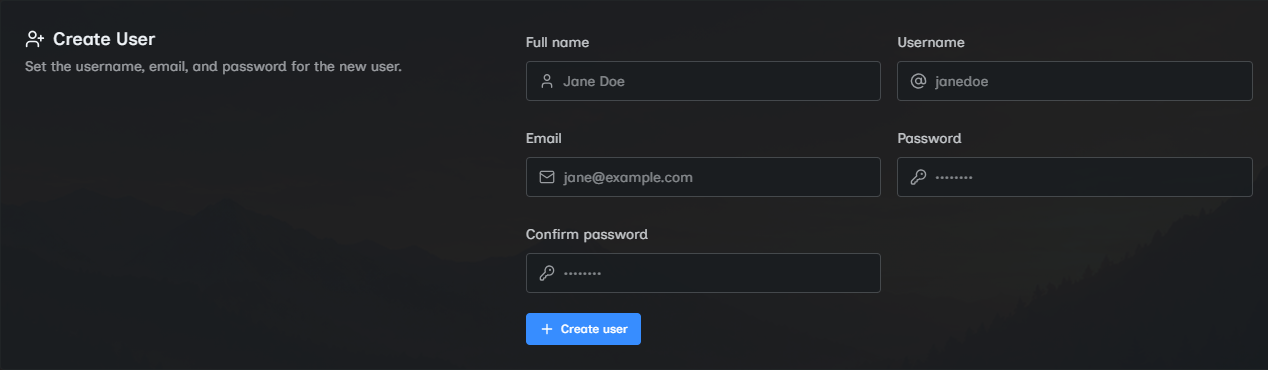
Create a user
Fill in Full name, Username, Email, Password, and Confirm password, then click Create user. The new account automatically receives User access.
The operator sets only the Account Password. Each user creates their own Vault Password after first sign-in, before the rest of Oscova loads. The operator never chooses it for them.
Rules:
- Usernames must be at least 3 characters.
- Passwords must be at least 6 characters.
- Password confirmation must match.
- Usernames and email addresses must be unique.
- Every new account receives User access.
Manage existing users
The User Directory table lists every non-system account with email, roles, and PIN status.
Use the edit button to expand a row. From the expanded row:
- Save profile updates username, email, and full name.
- Reset password sets a new password for another account.
- Set PIN or Change PIN saves a new PIN.
- Clear PIN removes a saved PIN.
- Delete removes the account after confirmation.
The operator cannot delete their own account or reset their own password from this screen. Use Profile to change your own password.
Operator safety
The normal Administration screen does not offer a way to change the operator's role or create another operator. It also disables deletion for the operator's own account. These guardrails protect recovery access.
PIN rules
PINs must be 4-6 digits. The confirmation must match exactly.
Use PINs for Home mode convenience, not as a replacement for account passwords. Password sign-in remains available from the login screen.
Deleted-user cleanup
When a user is deleted, Oscova also attempts to remove related user artifacts such as threads, memory, credentials, files, and cached user scope. If cleanup cannot fully complete, the success message tells you to check server logs.
Deletion also removes shared stored secrets protected by that user's key and forgets the user's unlocked key immediately. Operator-owned shared secrets therefore become available after restart only when the operator unlocks.
Note
User artifacts are the files and records owned by a user outside the identity row.
Troubleshooting
- If Home mode will not save, set a PIN on the operator account first.
- If a visible profile cannot sign in, ask the operator to set its PIN or use Password sign-in.
- If a connected account provider appears unavailable, confirm its OAuth provider card has both a client ID and stored client secret.
- If a user cannot be deleted, check whether it is the operator's own account.
- If Clear PIN is disabled, that user does not have a PIN.
- If PIN save fails, enter 4-6 digits in both PIN fields.