Backup and Restore
Last updated:
Backup and Restore creates an encrypted .oscb file for restorable Oscova app data, then restores that file only during first-run Admin Setup.
To move one custom agent without creating a full backup, export or import an agent package.
Note
A .oscb backup is an encrypted Oscova Backup file. It contains restorable app data, not downloaded model files, voices, or logs.
Before you begin
Only an administrator can export a backup. Restore does not require a sign-in, but it is available only before the installation has any users.
Export a backup
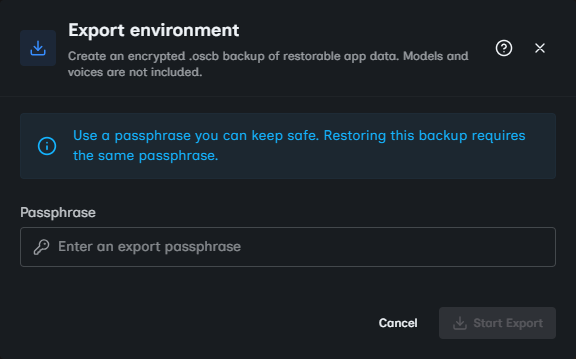
Open Settings > Files & Backup > Backup, then click Export.
Enter a Passphrase and click Start Export. Oscova starts a download named like oscova-environment-YYYYMMDD-HHMMSS.oscb.
Keep the passphrase with your backup records. Oscova cannot restore the file without the same passphrase, and it cannot recover a forgotten passphrase.
The Export Passphrase protects only this archive. It is independent of Account Passwords and each user's Vault Password.
Important
Treat .oscb files like private system backups. Anyone with the file and passphrase can restore the environment.
What the backup includes
The export includes:
- A safe copy of the SQLite database.
- Users and identity records.
- Agents, chats, tasks, memory files, prompt files, skills, settings, credentials, plugins, sandbox image files, seed files, and help content stored under app data.
- Each user's Vault-Password-wrapped data-key envelope in the database.
- A manifest with backup format, app version, export time, and exporting user ID.
It excludes:
- Local model files.
- Voice files.
- Logs.
- Pending restore operation folders.
- SQLite sidecar files such as
app.db-walandapp.db-shm. - Reparse-point or symlinked content.
- A legacy top-level ASP.NET Data Protection
keysdirectory.
Note
SQLite is the local database engine Oscova uses for app records. Sidecar files are temporary companion files SQLite can create while the database is active.
Restore a backup
Restore is available only on the first-run Admin Setup screen, before any user exists.
- Click Restore backup.
- Choose the
.oscbfile. - Enter the backup passphrase.
- Click Restore backup.
- Keep the window open while Oscova validates the file and restarts.
Oscova decrypts and validates the backup, stages safe entries, starts a replacement process, and applies the restore before normal startup opens the database.
If the destination already has any users, restore is blocked. Use a fresh app-data folder or clear the existing installation data before restoring.
Size and compatibility limits
Restore uploads are limited to 500 MB. The validated uncompressed backup content is limited to 2 GB.
Backups created by a newer Oscova backup format are rejected to avoid applying data the current version may not understand.
After restore
- Sign in with a restored admin account.
- Each user with protected credentials or Confidential Chat data signs in and enters their own Vault Password once. The archive never contains that password or an unlocked data key.
- Re-download local models and voices if you used them before.
- Confirm plugins and credentials are present.
- Check network settings if the machine or hostname changed.
- Run a small chat test before enabling scheduled tasks or channel bots.
Troubleshooting
- A passphrase is required: enter the export passphrase.
- The selected file is not an Oscova backup: choose the
.oscbfile produced by export. - Incorrect passphrase or corrupted backup: verify the passphrase and file integrity.
- This backup was created by a newer Oscova version: upgrade Oscova before restoring.
- Restore is only available on a fresh install: remove existing app data or use a clean installation.
- Oscova could not restart automatically: the staged restore was cleared. Check logs and retry after resolving host restart permissions.