Backup, restore and reset
Last updated:
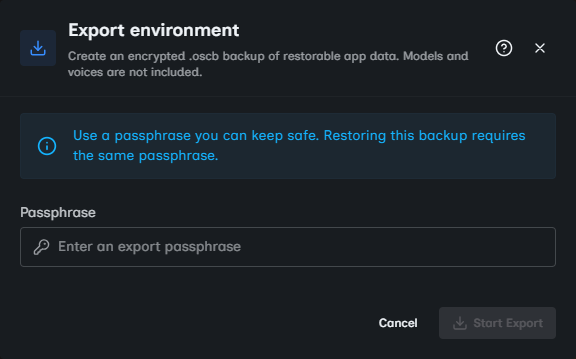
Export creates an encrypted .oscb backup of your Oscova Agents app data. Restore applies that file to a fresh installation during Operator Setup, and Reset Environment starts over while keeping the previous environment on disk.
Note
A .oscb file is an encrypted Oscova Backup. It holds restorable app data, not downloaded model files, voices or the shared system log folder.
To move one custom agent without a full backup, export or import an agent package.
Before you begin
- Only an administrator can export a backup. Restore needs no sign-in but is available only before the installation has any users.
- For CLI-managed installs, .NET tool updates and uninstalls leave
.oscova/app_dataunder your user profile in place. Take a backup before an application update anyway, because a preserved folder does not guarantee that a future version can open an older data format. - If an older tool package still stores its environment inside the package, follow the cold-copy procedure in Command line before updating or uninstalling it.
Export a backup
- Open Settings > Files & Backup > Backup and select Export.
- Enter a Passphrase and select Start Export. Oscova downloads a file named like
oscova-environment-YYYYMMDD-HHMMSS.oscb. - Store the passphrase with your backup records. Oscova cannot restore the file without it and cannot recover a forgotten passphrase.
The Export Passphrase protects only this archive. It is independent of Account Passwords and each user's Vault Password.
Important
Treat .oscb files like private system backups. Anyone with the file and passphrase can restore the environment.
What the backup includes
Included:
- A safe copy of the SQLite database, with users and identity records.
- Agents, chats, tasks, memory files, prompt files, skills, settings, credentials, plugin data, sandbox image files, seed files and help content stored under app data.
- The plugin inventory: each installed plugin's manifest and package record, without binaries. After a restore, reinstall plugins from the Plugins page. Plugins installed from a local file must be installed again from that file.
- Each user's Vault-Password-wrapped data-key envelope.
- A manifest with backup format, app version, export time and exporting user ID, plus a data-format version that identifies the persisted database and file contract independently of the application version.
Excluded:
- The shared skill registry cache, which can be downloaded again.
- Local model files and voice files.
- The top-level system log folder. Per-user logs inside the user-data folders are included.
- Pending restore operation folders.
- SQLite sidecar files such as
app.db-walandapp.db-shm. - Reparse-point or symlinked content.
- A legacy top-level ASP.NET Data Protection
keysdirectory.
Note
SQLite is the local database engine Oscova uses for app records. Sidecar files are temporary companion files SQLite can create while the database is active.
The backup covers files inside Oscova app data only. Preserve external folders granted to agents, host-installed runtimes and values referenced through host environment variables separately when moving to another machine.
Update checkpoints
Application updates create the same encrypted snapshot as a recovery checkpoint when the new version first starts, before it changes any data. The checkpoint, its generated recovery key and update evidence are stored under the private CLI update directory, and Oscova verifies the checkpoint before continuing. oscova update --version <PREVIOUS_VERSION> restores it at the original data path and reinstalls the recorded plugin versions from NuGet. Oscova keeps the latest successful checkpoint and any failed attempt's checkpoint and deletes older ones.
Restore a backup
Restore is available only on the first-run Operator Setup screen, before any user exists. If the destination already has users, use a fresh app-data folder or clear the existing installation data first.
- Select Restore backup.
- Choose the
.oscbfile. - Enter the backup passphrase.
- Select Restore backup.
- Keep the window open while Oscova validates the file and restarts.
Oscova decrypts and validates the backup, checks the current SQLite database for integrity and broken foreign-key references, stages safe entries, starts a replacement process and applies the restore before normal startup opens the database. It does not repair, prune or migrate the snapshot during this format-1 import.
Size and compatibility limits
- Restore uploads are limited to 500 MB. The validated uncompressed content is limited to 2 GB.
- This release accepts only data-format version
1. Missing, null, non-integer, older or future values are rejected before the active environment is replaced. The application version in the manifest records provenance and does not select conversion behavior. - Unversioned development backups need the application that created them. Editing the manifest does not make an older snapshot compatible, so keep the original file and passphrase.
- Automatic restore targets the default SQLite database at
<app-data>/app.db. Move a destination that uses another database path or a non-file database to the default app-data database before import.
After restore
- Sign in with the restored operator account.
- Each user signs in and enters their own Vault Password. The archive never contains that password or an unlocked data key.
- Re-download local models and voices if you used them.
- Confirm plugins and credentials are present.
- Check network settings if the machine or hostname changed.
- Run a small chat test before enabling scheduled tasks or channel bots.
- Keep the original backup until these checks succeed.
Recover an interrupted restore
If startup stops after a restore begins, Oscova keeps the previous environment under _pending and reports the exact app-data path that needs recovery. Stop every Oscova process using that environment, then set the path from the diagnostic and run recovery.
PowerShell:
$env:OSCOVA_APP_DATA_DIR = 'C:\Users\you\.oscova\app_data'
oscova environment recover --yes
Linux or macOS:
OSCOVA_APP_DATA_DIR='/home/you/.oscova/app_data' oscova environment recover --yes
Recovery moves the failed candidate aside and returns the retained previous environment, which can be empty for a restore into a fresh destination. Recovery does not convert a newer data format for an older application, so the matching earlier application may still be required after a future update failure.
After signing in and checking the recovered data, archive _pending outside the app-data root if you need the failure evidence. With Oscova stopped, remove that exact recovery directory before importing another backup. Do not move or delete another installation's _pending directory.
Reset the environment
An administrator starts again from Settings > Files & Backup > Backup > Reset Environment or from the terminal:
oscova environment reset
Both call the same Host-owned operation. The dialog requires the exact text RESET. The CLI asks for destructive confirmation, or accepts --yes for unattended use.
Before confirming, finish important work, run oscova avatar mcp stop and stop any external process that writes into app data. Oscova does not discover or stop external writers.
Reset moves these items from the active app-data root into a private dated sibling directory:
- The database and SQLite sidecars.
- Users, agents, chats, tasks, settings, files, credentials, plugins, keys, help content and other reset-owned app data.
It leaves models, voices, system logs, the environment lock, CLI configuration and history, installed tool files, Avatar files and user-owned external folders in place. The retained sibling is private local storage, but it is not encrypted and cannot be imported as an .oscb backup.
Oscova then restarts, creates a fresh database, downloads the default plugins again and opens Operator Setup at /login. Every browser cookie and CLI bearer token from the earlier Host becomes invalid. A CLI reset removes only the obsolete login for the selected Host and preserves other Host entries.
The immediate replacement keeps the current bind address and port so the browser or CLI can observe completion, while persisted network settings are reset. Later restarts use the original explicit CLI binding options, or fresh defaults until an administrator configures LAN access or a custom port again.
Reset is refused when:
- The selected Host uses an external or non-file database instead of
<app-data>/app.db. - The app-data root or movable content contains unsafe links.
- App data overlaps CLI credentials, Avatar state, update state or installed application files.
- Another restore, reset, application update or recovery is pending.
If the connection closes after confirmation, do not submit a second reset. Reopen the same Oscova address. A timeout means acceptance may have succeeded even though completion could not be verified.
Recover an interrupted reset
If startup reports an interrupted reset, stop the Host and Avatar MCP, set OSCOVA_APP_DATA_DIR to the exact active root shown in the diagnostic, then run:
oscova environment recover --yes
Recovery moves the failed fresh candidate into _pending and returns the retained previous entries without overwriting either copy.
Manually undo a successful reset
There is no undo command. Use the same Oscova package version and perform a cold move:
- Stop the Host, Avatar MCP and every external writer.
- Preserve the fresh reset-owned entries in another private location.
- Move the retained sibling's entries back into the original active app-data root without overwriting anything.
- Leave the existing models, voices and logs in the active root.
- Start Oscova and verify sign-in, Vault unlock, plugins, settings and representative files before removing either retained copy.
Troubleshooting
- A passphrase is required: enter the export passphrase.
- The selected file is not an Oscova backup: choose the
.oscbfile produced by export. - Incorrect passphrase or corrupted backup: verify the passphrase and file integrity.
- This snapshot data format is not supported by this release: use the matching application or a release that explicitly supports that data format.
- Restore is only available on a fresh install: remove existing app data or use a clean installation.
- Environment restore stopped during startup: stop Oscova and run the root-specific recovery command from the diagnostic before retrying.
- Application update did not finish: run
oscova update status, preserve the reported files and follow its root-specificrecovery.txtinstructions. - Reset was accepted, but completion is unverified: do not submit another reset. Reopen the same address, then use the root-specific offline recovery command if startup reports an interrupted reset.