Local or cloud models
Last updated:
Oscova Agents needs a model provider before agents can answer. Local models run on your own hardware and keep prompts on your machine. Hosted providers send prompts to a cloud service and usually answer faster on weak hardware.
Note
Model provider means a saved connection to a local or hosted AI model. A chat provider answers messages. An embedding provider turns text into searchable vectors for memory.
Provider choices
Local options:
- Local runs a downloaded GGUF model file through the optional LLamaSharp plugin, including on Intel macOS. Restart Oscova after installing or enabling the plugin.
- Foundry Local discovers and downloads supported local models through its optional plugin. Its macOS native dependencies require Apple Silicon.
- Ollama connects to an Ollama server by base URL and model name. The chat provider editor can download a model into that server's cache.
- LM Studio is an OpenAI-compatible preset for a local server.
Hosted options:
- OpenAI uses a saved OpenAI API key and hosted endpoint.
- DeepSeek uses a saved DeepSeek API key and starts with
deepseek-flash, with thinking and tool calls supported. Its endpoint is filled automatically. - OpenRouter uses an API key and an OpenAI-compatible gateway for many model families.
- NVIDIA NIM connects to NVIDIA-hosted OpenAI-compatible chat models and starts with
nvidia/nemotron-3.5-lightning-30b-a3b. For an existing provider using a retired model, select Fetch models and save an available replacement. - Google, Anthropic and Groq use their own hosted provider settings.
- OpenAI-compatible connects to another service or proxy that follows OpenAI-style APIs.
Set up a provider during onboarding
The Model step appears after the required profile-picture choice. Your vault is already unlocked, so a hosted API key or environment-variable reference can be tested and saved without leaving onboarding. You can skip model setup and finish it later.
The provider row lists Ollama, LM Studio, Local GGUF, Foundry Local, OpenAI, then the remaining hosted providers alphabetically. The generic OpenAI-compatible option is only available in Model Providers settings.
For a hosted provider:
- Choose Enter a value to paste a key. The operator can instead choose Use an environment variable and enter its name. Regular users must store personal credential values.
- Select Fetch models. This needs the variable's value to be visible to the Host process, so restart the Host if a newly added variable is not found.
- Select Continue. Oscova saves either the pasted key or only the variable name.
Share providers between users
You can use more than one chat provider. The operator's provider catalog is available to all users without exposing its credentials or private endpoint settings. Regular users select shared providers and inherit the operator's default.
To add private providers, ask the operator for the Manage personal model providers permission. Your effective default is used unless a chat run, task or agent has an override.
Add or edit a provider
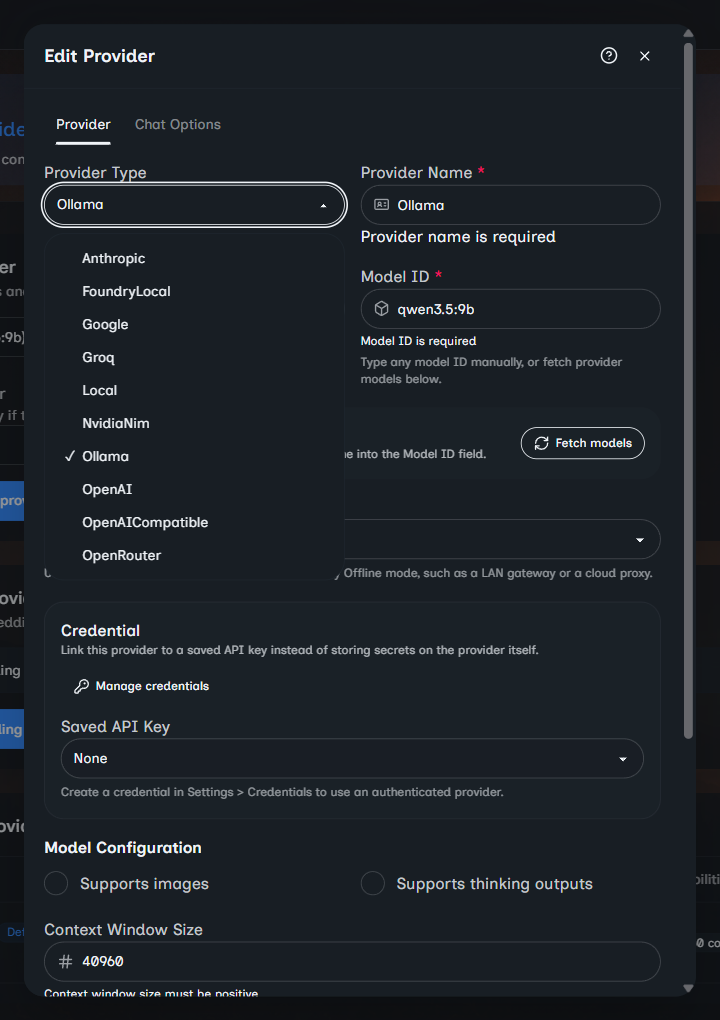
- Open Model Providers settings and select Add custom provider.
- Choose the provider type first. Oscova fills common endpoint, model, capability and chat-option defaults for that type.
- Set the name, model ID, optional base URL, credential reference, context window and capabilities. Optional input and output prices in USD per million tokens feed the dashboard cost estimate from reported token counts.
- For hosted and OpenAI-compatible providers, select Fetch models to load model IDs. When the provider reports metadata, choosing a fetched model also fills the context window and capability checkboxes. These values stay editable.
- Save the provider.
Providers you own can be opened for details, edited, duplicated, tested or deleted while you have provider-management permission. Shared providers stay managed by the operator.
Default and fallback
The Default Provider and Fallback provider dropdowns save immediately. The first provider you add becomes the default when no default exists.
A fallback protects runs that use the default, including when you explicitly select the same provider. Oscova tries it when the default cannot start or fails before response content appears. Selecting a different provider for a chat, task or agent does not use the default's fallback.
Local GGUF files
Choose an existing .gguf file or paste a direct HTTP or HTTPS download URL. Oscova normalizes Hugging Face /blob/ links, downloads into its local models folder and selects the file after a successful download. Keep the dialog open until the download finishes, or cancel it.
Install the LLamaSharp base edition for CPU inference on Windows, Linux or Intel macOS, or Metal on Apple Silicon. The CUDA edition targets Windows and Linux x64 and requires a compatible NVIDIA GPU, driver and CUDA 13 runtime. Replacing editions takes effect after restart. Package advice shows declared requirements and detected hardware separately from runtime verification.
On Linux, install the OpenMP runtime (libgomp1 on Ubuntu). CUDA also needs the CUDA 13 runtime and cuBLAS libraries in the environment running Oscova. For containers, GPU access alone does not supply those libraries. Follow NVIDIA's Linux installation guide for CUDA runtime setup.
Review the estimate below Context Window Size. Missing metadata leaves it unavailable and still permits Save. CUDA Advanced options default to full offload, with a manual layer count when you need fewer layers. Save, then use the provider row's Test action for a separate, bounded model load and short inference. It uses additional memory alongside already loaded models. See model providers for estimate limits and test outcomes.
Ollama downloads
- Start the Ollama server.
- Enter its Base URL and the registry tag in Model ID.
- Select Download model. You can download a model that is absent from the installed list without selecting Fetch models first.
- Keep the dialog open until the download completes, then select OK to refresh the model list.
- Save the provider separately.
A missing tag or unreachable server produces inline feedback in the editor. Cancel or the header close button cancels the attempt.
Endpoint scope
Use Endpoint scope when Offline mode classifies a custom endpoint incorrectly:
- Auto-detect checks the effective endpoint host.
- Treat as local keeps a LAN gateway or local proxy usable in local-only runs.
- Treat as cloud blocks a proxy or remote endpoint when local-only runs are active.
Force Treat as local only when you trust the endpoint. The override changes the egress decision even if the URL is public.
Use credentials
Hosted providers usually need a saved API key credential. Create the credential in Credentials settings, then link it from the provider form. OpenRouter model discovery can list public models without a key, but chat requests still need a valid credential.
For DeepSeek:
- Create a key in the DeepSeek API platform.
- Select DeepSeek in onboarding or the provider editor, then supply or link that credential.
- Select Fetch models, choose a model and save. The selected model supplies its context and capability defaults. Flash accepts images, while
deepseek-v4-prois text-only. - Keep Supports thinking outputs selected to use thinking with tool calls, or clear it for non-thinking answers.
Important
Do not paste API keys into prompts, system instructions, personal context or task instructions. Use saved credentials instead.
Search with embeddings
Searching indexed conversation memory and semantic Library search need an embedding provider in addition to the chat provider. Explicit daily and long-term memory notes do not require embeddings.
- The embedding provider has its own model ID and vector dimensions, which must match the embedding model output.
- Changing the selected embedding provider, provider type, base URL, model ID or vector dimensions resets conversation-memory vectors and queues Library reconciliation. Source files remain in the Library and Oscova re-embeds them with the new identity. Until rebuilding finishes, semantic results can be incomplete.
- Embedding provider choices are filtered to provider types that support embeddings, and embedding entries never appear in chat-provider selectors. Local GGUF, Foundry Local, Google, Anthropic, DeepSeek, Groq and NVIDIA NIM are chat-only in Oscova.
Troubleshooting
- If chat is disabled, confirm at least one chat provider exists and a default is selected.
- If a provider test fails, check the endpoint, model ID, credential and local service state. A passing connection test does not prove every prompt will succeed.
- If Local fails, confirm the GGUF file exists and the process can read it.
- If Ollama fails, confirm the server is running and the model name exists in Ollama.
- If memory or Library search is unavailable, configure a valid embedding provider and wait for indexing. Agent recall also requires memory enabled on the agent.