Run projects on another computer
Last updated:
Oscova Agents keeps your account, agents, conversations and workspaces on the server. A node connects another computer so your project file and shell tools can work there. The browser can be on that computer, your phone or another device.
Note
A node is the oscova node process running on the project computer. It enrolls once with your central account and executes project work the server sends it.
Start the server
The operator starts Oscova with oscova start and creates the required user accounts. New regular users start with Projects, Workspace shell and Project shell, and each can be changed separately in the user's editor. The operator can use both computers with the same operator account.
Connect your computer
Install the same Oscova release on the project computer:
dotnet tool install --global Oscova.Agents.AppStart the node with the server URL your operator provides and a recognizable name:
oscova node --host http://server-address:port --name "Barry's laptop" --allow-httpApprove the displayed sign-in request in a browser using your own central account. The terminal shows the connection and permission state.
On later starts, run the same command to reuse this computer's enrollment.
--allow-httpexplicitly accepts unencrypted credentials, commands and file contents on that connection. For an existing HTTPS endpoint, use its HTTPS URL and omit that option. Oscova checks the certificate using the operating system's normal trust rules and does not provision certificates.- Keep the terminal open for foreground operation. Ctrl+C stops the node and requests cancellation of its managed work.
- After a reboot or process exit, start the node manually. No automatic startup is installed. A sleeping or powered-off computer cannot serve project requests.
- Use
--enrollto replace a revoked enrollment after a fresh browser approval. Replacement creates a new device identity. Existing projects retain their previous identity, so add them again under the newly enrolled device.
Run the node in the background
Add --detach to keep the node running after closing the terminal, then control it from the same computer:
oscova node --host http://server-address:port --allow-http --detach
oscova node status --host http://server-address:port
oscova node stop --host http://server-address:port
- Detached startup reports success after the node connects.
- Status distinguishes connected, reconnecting and stopped.
- Stop works even when the server is offline and preserves enrollment for your next launch.
- Starting the same enrollment twice does not create another connection.
Add a project
- In the chat list, select Add project.
- Choose the connected computer.
- Enter a name and the absolute path of an existing folder on that computer, then save.
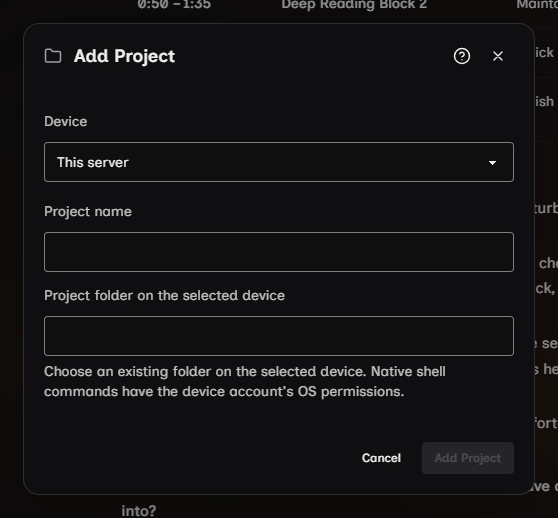
Install Git and the project's required build tools on that same computer. Regular users require Projects permission and a connected project-capable node. The operator can also select a folder on the server.
- Project file tools and shell commands run on the selected computer. Explicit server-workspace file requests still use your own central workspace.
- Selecting a folder in the Files panel only changes the preview. It does not move shell execution.
- Project shell requires the operator's project-shell permission. Host runs commands with the node process's operating-system permissions. Docker runs them in Docker on that device, and if Docker is unavailable the command stops without switching to Host mode. Disabled permits file tools without shell.
- Project selection itself is not operating-system isolation.
Permissions and disconnections
The operator can change execution permissions while you are connected. New affected calls stop being admitted, and running affected calls and managed background jobs receive cancellation. Changes already made are not undone.
- If a node does not acknowledge a permission update or conversation cleanup within 10 seconds, the server disconnects it so account administration can continue. A forced disconnect does not prove the remote processes stopped. Inspect the node terminal and running work before continuing.
- When the node is offline, project history remains visible but project actions are unavailable.
- A running node keeps trying to reconnect during a server outage and refreshes permissions when reconnected. Oscova does not run project operations on the server or replay interrupted writes. If the node process has stopped, start it again, inspect any files changed before the interruption and retry deliberately.
Project artifacts and files
The Artifacts panel identifies workspace and project outputs separately. Select a project artifact to preview Markdown, text, raster images or PDF, or download its current contents from the owning device.
- Text previews are limited to 512 KiB. Larger files and unsupported preview types can still be downloaded.
- HTML is displayed as text and SVG is download-only.
- Files stay on their original computer. There is no offline copy on the server. If the device is offline, access is revoked or the file is removed, the viewer explains that the file is unavailable. Restore access or start the node, then reopen the preview.
- Workspace artifacts continue to use your central workspace.
Accounts and configuration stay central. Oscova transfers a skill's bundled files when its script runs on a node project. Personal STDIO MCP connections run on their assigned device, where you install the required program. Shared central connections and HTTP connections stay on the server. Sharing a tool does not give its service implicit access to a laptop's files.