Instructions
Last updated:
Instructions are the reusable templates Oscova Agents inserts into every agent run. They shape how agents receive context and supporting guidance, and you can replace or extend each one.
Note
Prompt here means a saved instruction file used by Oscova during agent construction, not a message typed into chat.
Prompt catalogue
Open Settings > Agents & AI > Instructions. The Custom Prompts catalogue lists the editable templates and where each is stored. Select Edit to open the full editor.
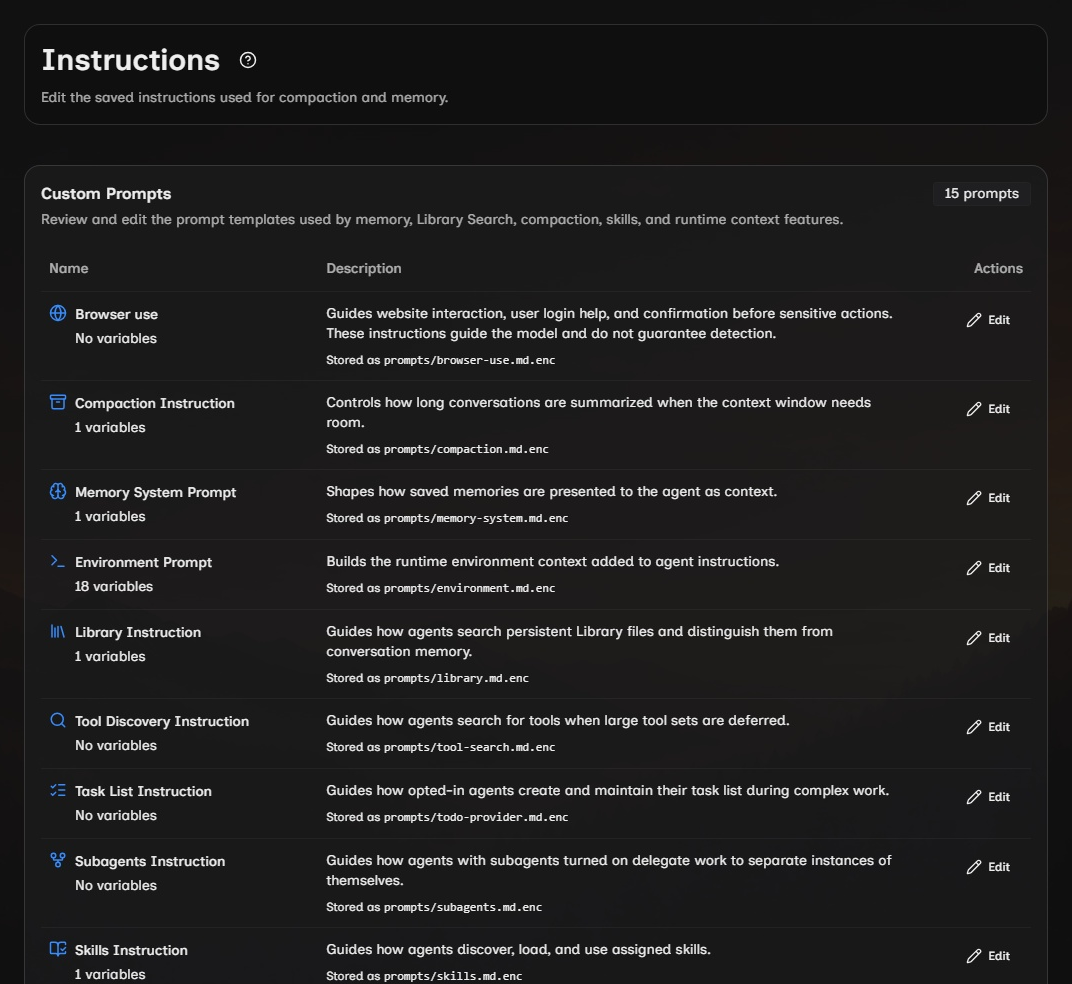
An instruction with missing or invalid metadata shows an error and its Edit button is disabled. Other instructions stay available, the rejected file stays unchanged and the agent runtime rejects it until its metadata is corrected.
| Instruction | Purpose | Variables |
|---|---|---|
| Compaction Instruction | How long conversations are summarized | {{ chat_history }} |
| Memory System Prompt | How saved memory is presented | {{ agent_memory }} |
| Environment Prompt | Runtime context and shell guidance | See below |
| Library Instruction | Semantic search across Library files, distinct from conversation memory | {{ library_path }} |
| Tool Discovery Instruction | How agents search for deferred tools | |
| Task List Instruction | Task-list behavior when Enable Task List is on | |
| Skills Instruction | How agents discover, load and use assigned skills | {skills} |
| Avatar Emotion Instruction | Feeling tags in web-chat replies spoken through a connected avatar | {{ emotion_names }} |
| Chat Resume Instruction | Continuation of an interrupted chat after you select Resume | |
| Goal judge instruction | How the selected model checks completion after goal work | See below |
| Goal continuation template | Turns an incomplete verdict into the worker's next instruction | {gap_analysis} |
| Chat Title Instruction | Automatic title creation | {{ chat_history }} |
| Tool Failure Recovery Instruction | What the agent does after repeated tool failures. Failure counts and reasons come from the actual failures |
The Environment Prompt supports {{ os }}, {{ architecture }}, {{ shell }}, {{ working_directory }}, {{ path_separator }}, {{ home_directory }}, {{ temp_directory }}, {{ workspace_directories }}, {{ private_directories }}, {{ has_private_directory }}, {{ host_os }}, {{ host_architecture }}, {{ host_shell }}, {{ host_path_separator }}, {{ workspace_has_aliases }} and {{ uses_host_paths }}.
- Variables without the
host_prefix describe the selected execution environment. Thehost_variables describe the machine running Oscova, which can differ when commands run in Docker. - The default Environment Prompt lists user workspaces under Workspace Access and the agent's own persistent folder under Your Private Folder.
workspace_directoriesexcludes that private grant,private_directorieslists it andhas_private_directoryindicates whether it is available. - The Environment Prompt also owns shell guidance.
shell_root_variableslists variable names beside their canonical folder aliases, andhas_shell_rootscontrols its presence. These variables contain actual paths for the execution device.uses_host_pathsis true for native execution, where aliases are file-tool addresses andworkdirselects the shell folder.
The goal judge instruction must preserve the answered and gapAnalysis fields for structured output, plus VERDICT: DONE and VERDICT: MORE for the built-in text fallback. Both markers or neither marker cause continuation. The judge has no tools or automatic access to the whole chat or your files. The goal continuation template inserts the judge's explanation through {gap_analysis} with single braces and goes to the worker after substitution.
The prompt files are stored encrypted under your user prompt folder as compaction.md.enc, memory-system.md.enc, environment.md.enc, library.md.enc, tool-search.md.enc, todo-provider.md.enc, skills.md.enc, avatar-markup.md.enc, chat-continuation.md.enc, goal-judge.md.enc, goal-continuation.md.enc, chat-title.md.enc and tool-failure-recovery.md.enc.
Edit safely
- Choose Use Default, Add to Default or Replace Default. Use Default sends the current supplied instruction and ignores saved custom text. Add to Default sends that instruction followed by your custom text. Replace Default sends only your custom text, including an empty replacement.
- Edit the custom text. Expand Default instruction to inspect the supplied reference, and select a variable chip to insert it at the cursor.
- Select Save, or Cancel to discard the draft.
- Application and plugin updates can refresh defaults while preserving your custom text and mode. Add to Default and Replace Default share one custom body.
- Oscova does not resolve conflicting rules, so express any priorities in your own text.
- Saved changes take effect on the next message or task run, including an existing chat. They do not rewrite a response already in progress.
- Each prompt must stay within the 512 KB text-editor limit. If Save reports that the content is too large, shorten the template.
Caution
Variable names are case-sensitive. {{ agent_memory }} and {{ Agent_Memory }} are different text to the renderer.
The Skills prompt uses single-brace placeholders because the skill provider consumes it, not the double-brace renderer used by compaction, memory and environment prompts. Its saved template must contain {skills}, or the skill provider rejects it.
When to edit prompts
Edit these templates to change shared background behavior:
- Compaction summaries are losing decisions or open questions.
- Memory context needs clearer dates or caution.
- Environment context is too noisy or missing useful workspace detail.
- Tool discovery should search more narrowly or more broadly.
- Task lists need a different style for complex work.
- Skill loading instructions should explain when to read
SKILL.md, when to load resources or how to treat bundled scripts.
For a single agent's persona or job description, edit that agent's System Instruction instead. For a repeatable capability with resources or scripts, use a skill.
Recover from a bad edit
- Reopen the prompt and select Restore default.
- Confirm Yes to clear your custom text and switch to Use Default. No or dismissing the confirmation preserves your edits.
- Select Save to apply it. Cancel discards the restored draft without changing the saved instruction.
The selected mode and custom body are stored together in the encrypted instruction file under your Vault Password. Defaults come from the installed application or active plugin, so an instruction without a customization file uses its current default. Browser instructions appear when the Browser plugin supplies them. Saving a prompt immediately updates the cached agent instructions, and the next turn uses the updated template.